
Getting Started
Installing the Lighting Suite
Install the Lighting Suite with the CG Foundry Lighting Suite Installer. You need Unreal Engine 5.8 from the Epic Games Launcher on Windows 10 or 11, and a CG Foundry account. The plugin installs into the engine, so every project on that engine can use it; turn it on in each project where you want it.
Before You Start
- Unreal Engine 5.8 from the Epic Games Launcher. For an engine your studio builds from source, see Source License.
- Windows 10 or 11, 64-bit. Mac and Linux are not supported.
- A CG Foundry account with a confirmed email address. Create one at cgfoundryart.com.
Download the Installer
Go to cgfoundryart.com.
At the top right, click Sign In and sign in.

Sign In at the top of the site At the top right, click your name, then My Lighting Suite.
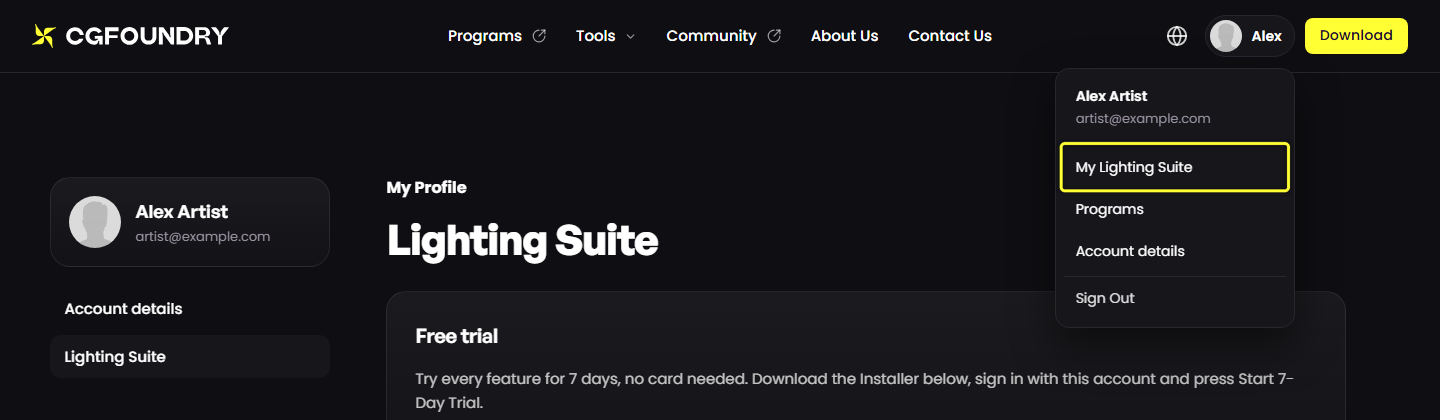
My Lighting Suite in the account menu Scroll to Downloads and click Download for Windows.
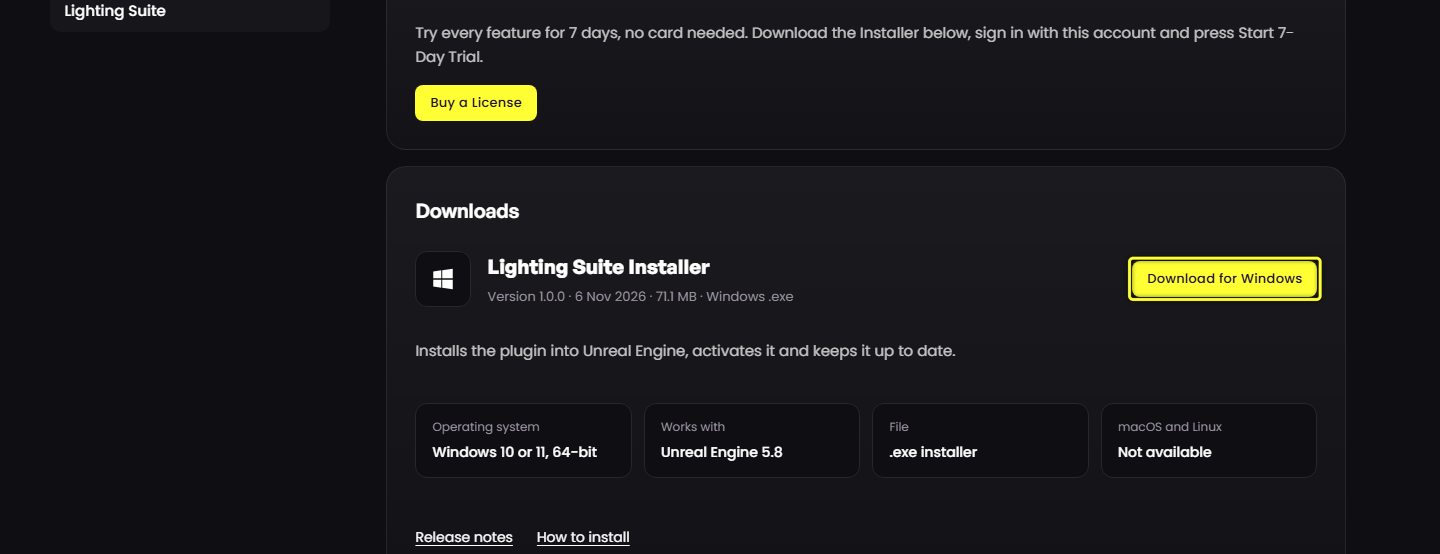
Download for Windows in the Downloads card Open the downloaded file, CGFLightingSuiteInstaller.exe.
Note: The Installer isn't signed yet, so Windows may stop it. Continue only if you downloaded it from your account page on cgfoundryart.com.
- Windows protected your PC: click More info, then Run anyway.
- Unknown publisher: run it.
- Smart App Control blocked an app: there is no override. Contact us and we'll help you install.
- Your antivirus removed the Installer: restore the file from quarantine. Tell us which antivirus and what it reported.
- Your studio allows only approved programs: ask your IT team to allow the file, or ask us for the plugin package to install by hand.
Set Up the Installer
On Welcome, click Next.
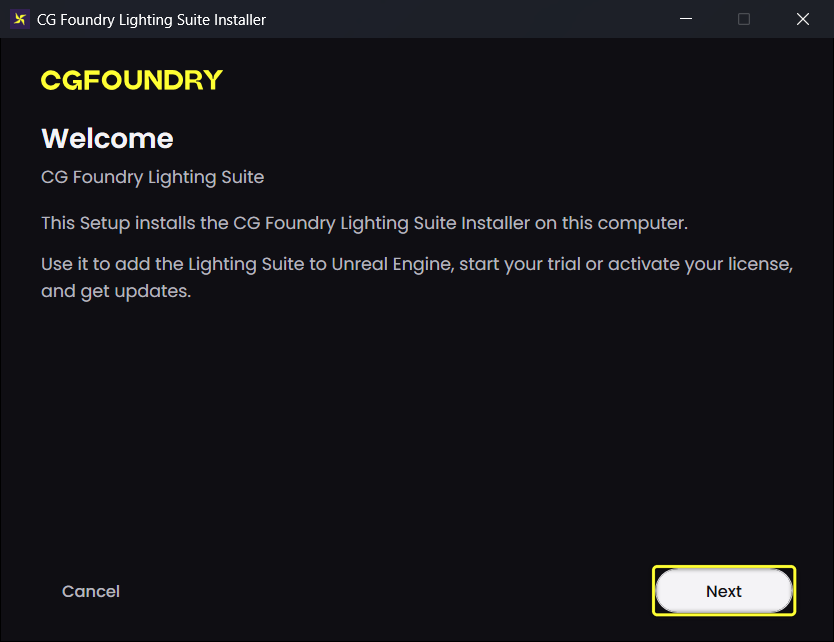
The Welcome page Read the License Agreement, then tick I agree to the License Agreement.
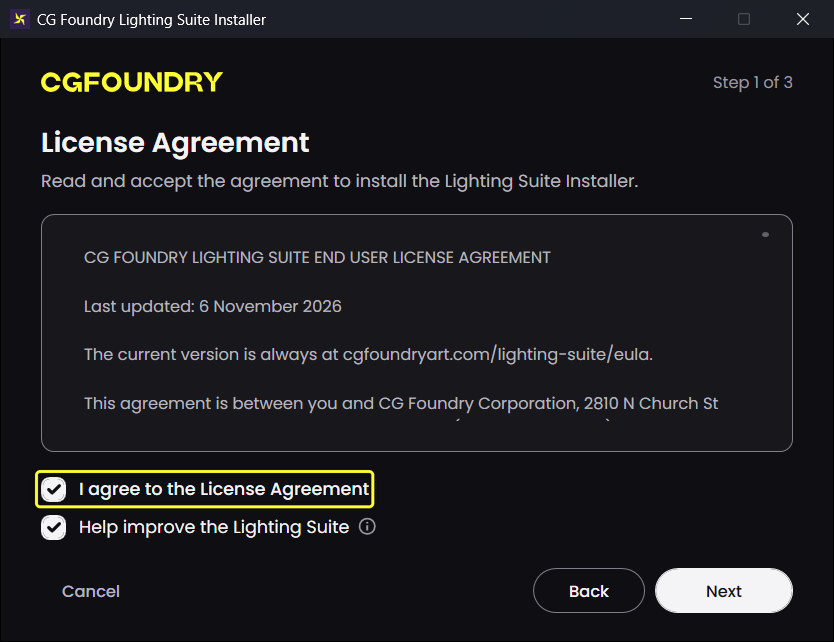
I agree to the License Agreement Click Next.

The Next button On Options, keep the suggested Install location or click Browse... to choose another folder. Click Next.
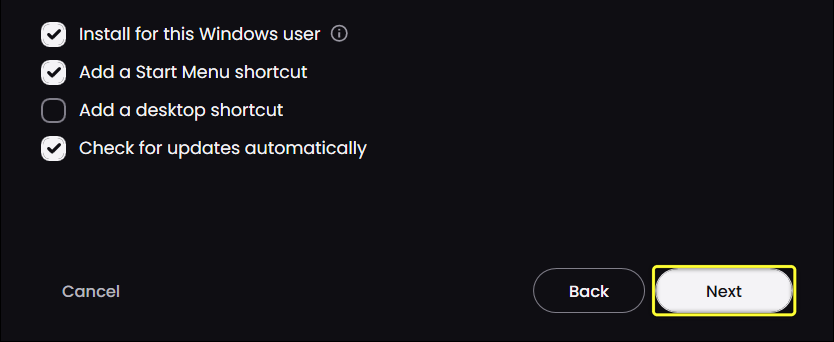
The Options step On Ready to Install, click Install.

The Ready to Install step On Setup Complete, keep Launch the Installer ticked and click Finish.
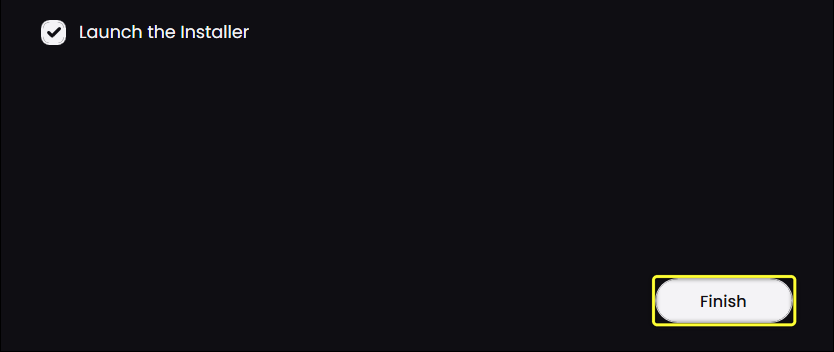
Setup Complete
You should see: Sign in to CG Foundry, with a code.
Sign In
Click Open Browser.
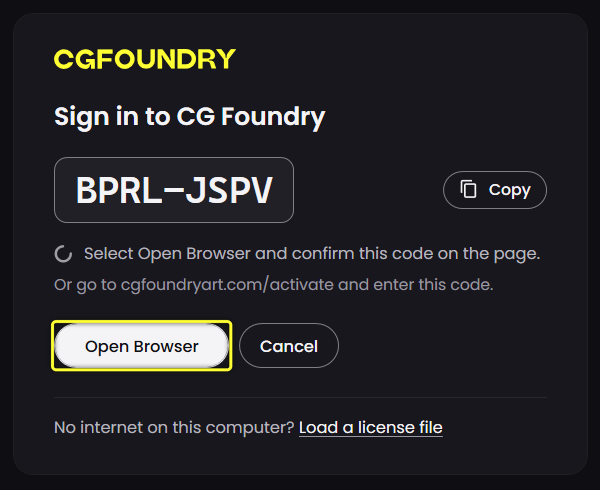
Open Browser next to the sign-in code In the browser, check that the code matches the Installer, then click Sign In to the Installer.
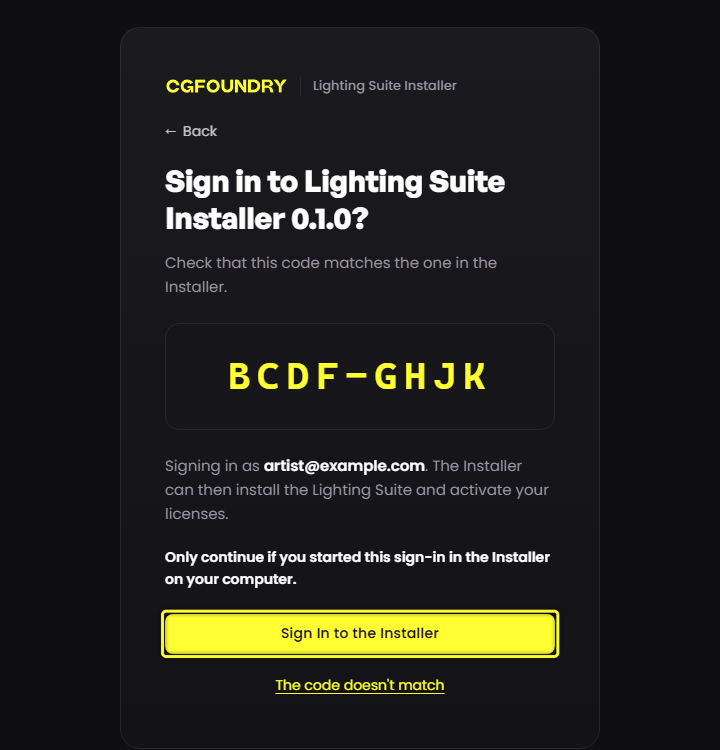
Sign In to the Installer in the browser Go back to the Installer.
You should see: your name and email at the bottom left of the Installer.
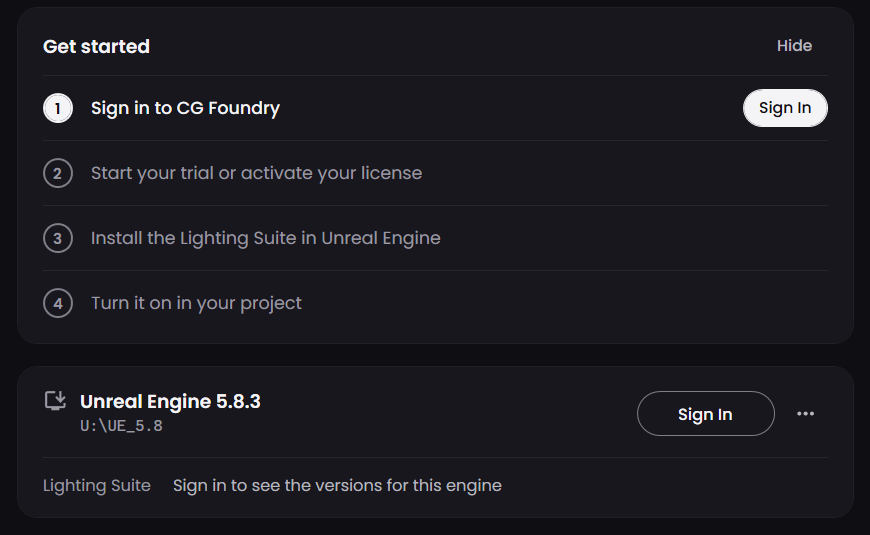
Get Started on the first page shows your next step. If you closed sign-in, click Sign In there.
Start Your Trial
On the left, click License.
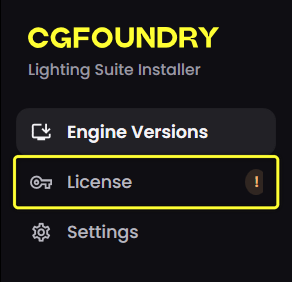
License in the Installer's side bar Click Start 7-Day Trial. If you bought a license, click Activate instead.
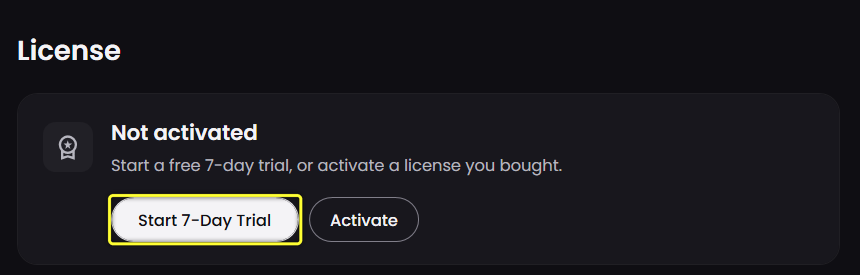
Start 7-Day Trial
You should see: Your 7-day trial has started, with its end date. Click Close.
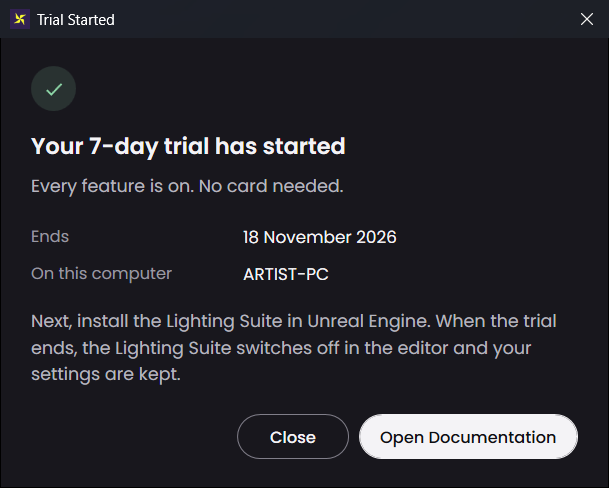
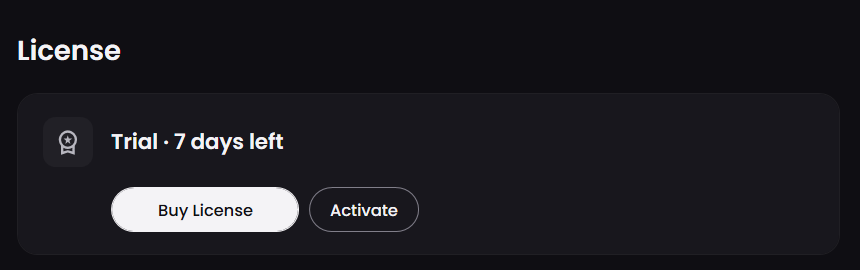
The License page shows your days left.
Install the Plugin
Close Unreal Engine.
On the left, click Engine Versions.
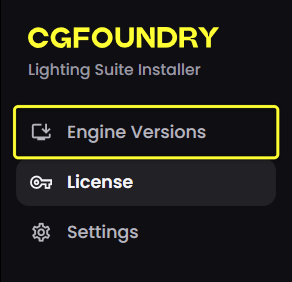
Engine Versions in the Installer's side bar Find Unreal Engine 5.8 in the list. If it isn't there, click Select Unreal Engine Version... and pick its folder.
On Unreal Engine 5.8, click Install.
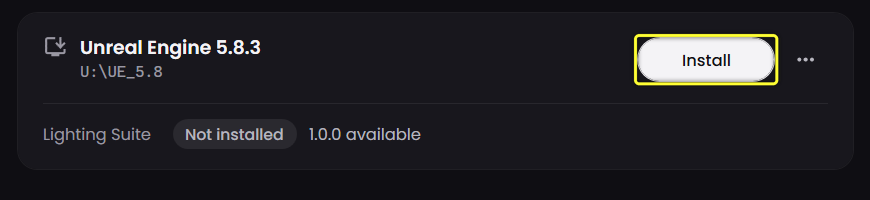
The Install button on an engine Check the summary and click Install.
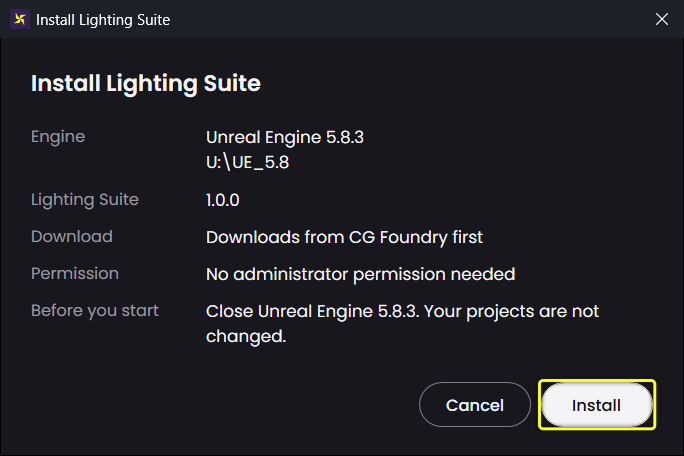
The Install Lighting Suite summary If Windows asks whether the Installer may make changes, click Yes.
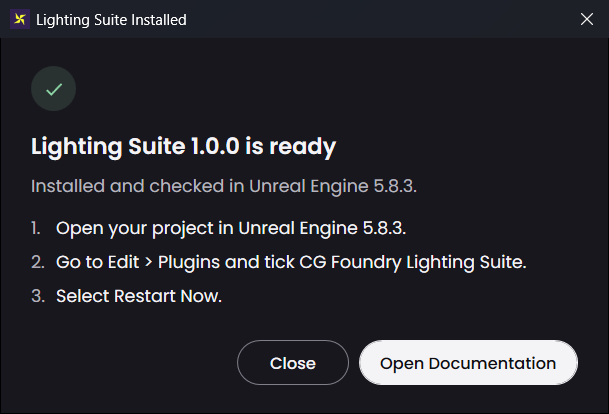
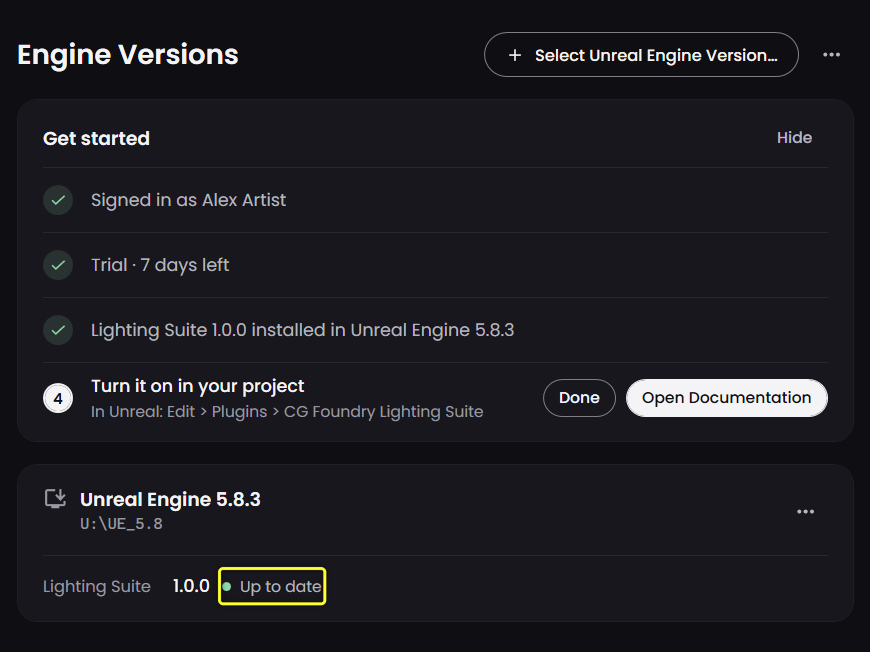
You should see: Lighting Suite 1.0.0 is ready. Click Close. The engine now says Up to date.
Turn the Plugin On in Your Project
The plugin installs into the engine, so every project on that engine can use it. It stays off in each project until you turn it on.
Open your project in Unreal Engine 5.8.
Select Edit > Plugins.
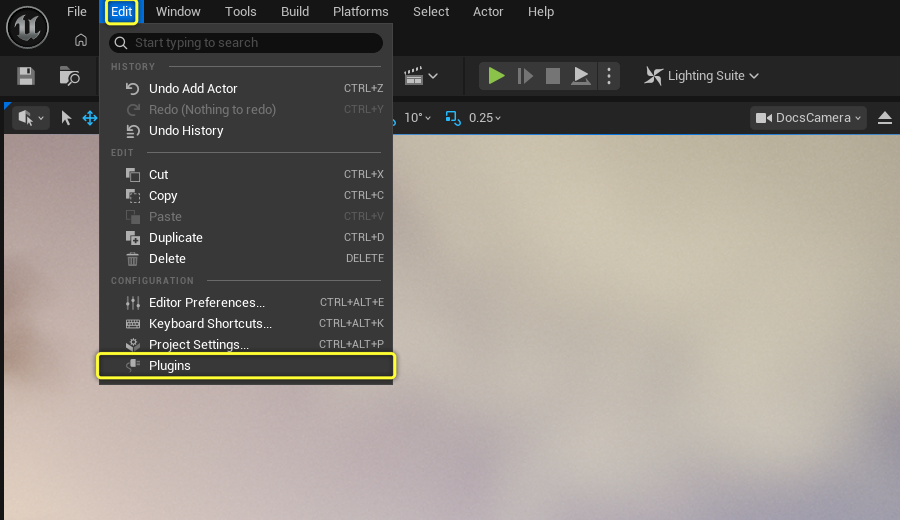
Edit, then Plugins In the search box, type CG Foundry Lighting Suite.
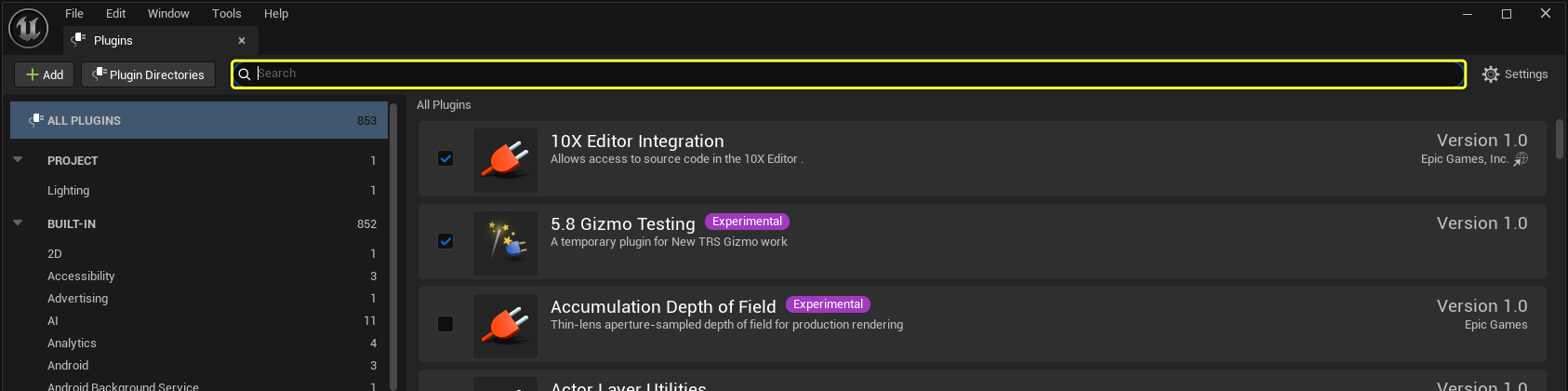
The Plugins window with the search box Tick the box on its tile.

The plugin's tile Click Restart Now.
You should see: a Lighting Suite button on the toolbar above the viewport.

Check It Works
Select Lighting Suite > About Lighting Suite.
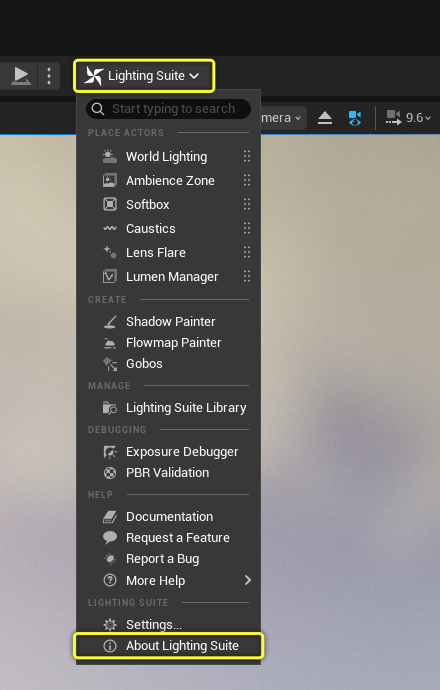
About Lighting Suite in the menu
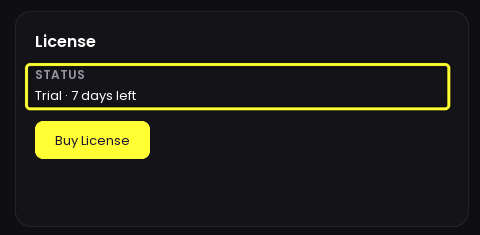
You should see: Status in the License panel shows your trial or your license.
Best Practices
- Back up your project, or work in a copy, before you install or update any plugin.
- Close Unreal for an install, update or version switch. If it is open, the Installer downloads first, asks you to close it, then continues.
- Keep the Installer open while it downloads. If the connection drops, it tries again by itself and carries on where it stopped. Progress also shows on its taskbar button.
- On a studio network that needs a proxy, set it in the Installer first. See Connect Through a Studio Proxy.
- Turn the plugin on only in projects that use it.
Related Pages
- Lighting Suite Quick Start: light a test level.
- Using the Installer: light or dark, a studio proxy, Installer updates and diagnostics for support.
- Trial, License and Updates: when a trial ends, moving computers, offline activation and updates.
- Troubleshooting and Known Issues: if a step above doesn't work.