
Support
Settings and License Status
The About tab shows your license status, the installed version and how long updates are included. It and Settings... always open, even when the tools are locked.
Opening the About Tab
- On the level toolbar, click Lighting Suite.
- Select About Lighting Suite.
You should see: the About tab with your version and license status.
To open the Lighting Suite's Project Settings, select Lighting Suite > Settings....
The About Tab
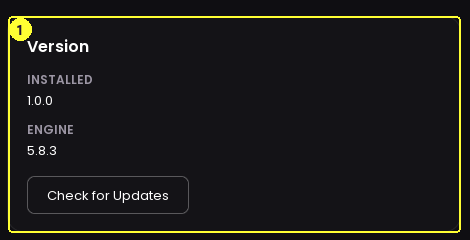
Hover a value for more detail. The buttons in a panel are the next steps.
| Panel | Row | Shows |
|---|---|---|
| License | Status | Your license status (see below). The buttons depend on the status. |
| License | Updates | Licenses only: Included until a date, or Ended and a date. |
| Version | Installed | The installed version. Hover for its release date. |
| Version | Engine | The Unreal Engine version you are running. |
| Version | New Version | Only when an update is known: its version and release date, with Update, Download and Release Notes. A version released after your updates ended opens with the tools locked. |
Check for Updates is in the Version panel. For a computer without internet, click Offline Activation... at the bottom of the tab.
License Status
Packaged games are never affected, and your levels load in every status.
- Without a license, with one that needs attention, or after a license moved away: Lighting Suite content shows in the editor but can't be changed.
- After a trial ends, or if CG Foundry switches a license off: content is off in the editor. Lights render as plain Unreal lights and Lighting Suite actors draw nothing. Your settings are kept and return with a license.
When the tools are locked:
- Tool tabs show Locked, and Shadow Painter and Flowmap Painter do not start. Choosing a locked tool shows a notification and opens the About tab.
- Lighting Suite actors can't be placed, from Place Actors or by dragging their class or a Blueprint of them. You can still move and duplicate actors already in the level.
- Lighting Suite components aren't listed in Add Component.
- Lighting Suite assets are read-only in every Details panel. Fix links in the Message Log show a notification instead of changing anything.
- A new Ambience Zone Profile isn't offered, and Apply to Selected Lights is hidden.
- The first time you select a Lighting Suite actor in an editor session, a notification shows your status and the next step.
| Status | Tools | What it means | Buttons |
|---|---|---|---|
| Not activated | Locked | No license on this computer. | Start 7-Day Trial, Activate |
| Trial · N days left | Open | All tools are unlocked until the trial ends. | Buy License |
| Trial ended | Locked | The trial is over. | Buy License, Activate |
| Licensed to (your name) | Open | You keep this version for good. | Manage License |
| Not included in your updates | Locked | This version came out after your updates ended. Renew, or install a version released before that date. | Renew Updates, Manage License |
| Connect to check in | Locked | Your license has not reached CG Foundry for more than 30 days. | Check In, Manage License |
| Activated on another computer | Locked | The license was moved to another computer, or deactivated on this one. Versions after 1.0.2 say Not active on this computer. | Manage License |
| License file not valid | Locked | The license file is damaged or was changed. | Manage License |
| System clock is behind | Locked | The computer's date is earlier than a date it already used. Set the correct date and time. | Refresh |
| License deactivated | Locked | CG Foundry switched this license off, for example after reviewing a refund. | Manage License |
- Activate and Manage License open the Lighting Suite Installer. Without the Installer, they open your account page.
- Buy License opens the store page on cgfoundryart.com. So does Renew Updates on the About tab. On a notification, Renew Updates opens the Installer.
Notifications at Startup
- No license on this computer: No Lighting Suite License on This Computer opens. Click Continue, then Start 7-Day Trial or Activate. Click Turn Off Plugin only if this project should not use it.
- Not activated: CG Foundry Lighting Suite is not activated, with Start 7-Day Trial and Activate.
- The last two days of a trial: CG Foundry Lighting Suite trial: and the days left, with Buy License.
- A check-in is needed: Connect to check in, with Check In.
- Trial ended: CG Foundry Lighting Suite: Trial ended, with Buy License and Activate.
- Not included in your updates: CG Foundry Lighting Suite: and the status, with Renew Updates.
- Any other locked status: CG Foundry Lighting Suite: and the status, with Manage License.
Project Settings
These are saved with the project, so the whole team gets the same values.
Plugins > CG Foundry Lighting Suite
The New Assets category sets where the Save Asset dialog first opens for a new asset. After that, it opens where you last saved one.
| Setting | Default |
|---|---|
| Shadow Paint Folder | /Game/CGFLightingSuite/ShadowPaint |
| Softbox Preset Folder | /Game/CGFLightingSuite/Presets/Softbox |
| World Lighting Preset Folder | /Game/CGFLightingSuite/Presets/WorldLighting |
Plugins > CG Foundry Lighting Suite - Exposure Debugger
The limits for Check Exposure. See Exposure Debugger.
Plugins > CG Foundry Lighting Suite - PBR Validation
The values PBR Validation checks materials against. See PBR Validation.
Editor Preferences
These are personal. They aren't shared with your team.
Plugins > CG Foundry Lighting Suite
| Setting | What it does | Default |
|---|---|---|
| Show Update Notices | Shows a notification when a new version is ready. The About tab always shows it. | On |
Plugins > CG Foundry Lighting Suite - Ambience Zones
How Ambience Zones look in editor viewports. These settings are never saved into a level and never show in a game.
| Setting | What it does | Default |
|---|---|---|
| Pattern | Pattern on the zone walls, in the profile's color. | Checker |
| Pattern Size | Size of a checker square, or the space between lines. | 500 cm |
| Wall Opacity | 1 is solid. Lower it to see and click what is inside. | 1 |
| Show Names | Shows the zone's name and its profile's name on every wall. | On |
| Text Size | Height of the letters. | 100 cm |
| Text Color | Color of the names when its checkbox is on. When off, a darker shade of each zone's color. | Off, white |
Getting Help
Sign in at cgfoundryart.com and open My Lighting Suite > Report a Problem. You can also email info@cgfoundryart.com.