
Sky and Atmosphere
Shadow Painter
The Shadow Painter lets you brush where a light reaches the scene, right in the viewport. Add shade to a sunlit floor, keep a light on a character, or fade a Spot Light out across a wall.
How It Works
The paint is a grayscale texture that Unreal projects through the light as a Light Function. White lets the light through. Black blocks it. You paint on Unreal's own Spot Light or Directional Light, with no material to make first.
- A Spot Light projects the paint through its cone, at full detail in Unreal's Light Function pass, not from the Light Function Atlas.
- A Directional Light projects it across a Paint Area, a square that covers the level.
- The paint belongs to the light, so it stays in place when the camera moves.
- It is saved as a Shadow Paint asset and also renders in packaged games.
What It Fixes
| The problem | What to do |
|---|---|
| Sunlight falls evenly across a floor. | Add dappled shade with the Noise tool or the Foliage alpha. |
| A light spills past the character you want to light. | Click Fill, then hold Shift and paint light back on the character. |
| A Spot Light ends in a hard edge on a wall. | Drag a fade with the Gradient tool. |
| Hidden meshes that block light take time to place and change. | Paint the shadow on the light instead. |
| A Light Function Material needs a texture from another app. | Paint it in the viewport. |
| Painted shade should move as the sun turns. | Keep Follow Light Direction on. |
| One area of the level needs its own shade. | In an Ambience Zone profile, set Sun > Shadow Paint. This needs World Lighting. |
What's Included
- 9 tools: Paint, Dodge, Smooth, Sharpen, Smudge, Flatten, Noise, Gradient and Lasso Fill.
- 3 brush types: Circle, Alpha and Pattern.
- 4 brush textures: Noise, Streak, Foliage and Clouds, or any grayscale texture.
- Paint Adjustments for each light. The saved paint doesn't change.
- Gobos: Combine with Gobo masks a gobo with the paint or replaces it.
- Your own presets: there are no built-in presets. Your saved assets appear in the Lighting Suite Library under Shadow Paint.
Painting a Light
Stop Play In Editor if it is running.
Select a Spot Light or Directional Light.
In the Details panel, in the Lighting Suite category, open Shadow Paint.
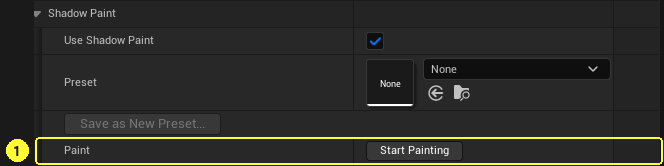
Shadow Paint in the Lighting Suite category of a Spot Light. 1 Start Painting. Click Start Painting (1).
In the Save Asset dialog, pick a folder and a name, then click Save.
You should see: the Shadow Painter tool palette. The light looks unchanged, because new paint starts fully lit.
Move the cursor over the scene.
You should see: the brush footprint where it lands.
Drag to paint shadow where the light should not reach.
You should see: the light disappears under your stroke.
Hold Shift and drag to paint light back.
Switch to another editor mode to leave the Shadow Painter.
You should see: a notification that the paint was saved. The paint saves on its own when you leave or deselect a painted light. There is no Save button.
Tip: Hold B and drag left or right to change the brush size, or up and down to change Strength. [ and ] also change the size. Ctrl + Z undoes each stroke.
You can also start from the Lighting Suite menu (Create > Shadow Painter), or from the level editor's Modes menu.
Painting Light Into Darkness
- Click Fill in the tool palette. The whole light is now in shadow.
- Paint with Shift held, or set Mode to Light, to bring light back where you want it.
Tools
| Tool | What it does |
|---|---|
| Paint | Paints shadow or light. Shift paints the other. |
| Dodge | Brightens (Dodge) or darkens (Burn) the paint gradually. Shift switches. |
| Smooth | Softens the paint's edges. |
| Sharpen | Crisps soft edges. |
| Smudge | Pushes the paint along the stroke. |
| Flatten | Paints toward one level of light. |
| Noise | Adds breakup, like light through leaves. |
| Gradient | Drag to make a long fade from shadow to light. Linear or Radial. |
| Lasso Fill | Click points around a shape, then press Enter to fill it with shadow or light. |
The palette also has Fill (all shadow), Clear (back to fully lit) and Invert (swap light and shadow). You can undo all three.
Main Settings
| Setting | Description |
|---|---|
| Strength | The most one stroke changes the light. Paint again to build up. Default 0.8. |
| Flow | How quickly a stroke builds up to its Strength. Default 1. |
| Mode, Range, Level, Filter Size, Noise Size | Settings of the active tool: Paint or Dodge mode, Dodge's tonal range, Flatten's level, Smooth and Sharpen's size, Noise's size. |
| Type, Start With, Curve | Gradient: Linear or Radial, shadow or light first, and the shape of the fade. |
| Fill With, Feather | Lasso Fill: shadow or light, and how soft the edge is, in cm. |
| Brush Size | Width of the brush on the scene, in cm. Default 250. |
| Brush Falloff, Falloff | Shape of the brush edge (Smooth, Linear, Spherical, Tip), and how much of the brush fades. 0 is a hard edge. Default 0.4. |
| Smoothing | Steadies your strokes. Default 0. |
| Spacing (advanced) | Distance between stamps, as a share of the brush size. |
| Brush Type | Circle, Alpha (a stamped grayscale texture) or Pattern (a tiled texture the brush paints through). |
| Alpha, Texture, Pattern Size, Rotation | The brush texture, your own texture, the tile size in cm, and the texture's angle. |
| Follow Stroke, Random Rotation, Scale Jitter | Alpha brush: turns each stamp along the stroke, and varies its angle and size. Scale Jitter works on every brush. |
| View | Normal, Paint Mask (white is light, black is shadow) or Quick Mask (shadow tinted red). Mask Opacity (advanced) sets the tint. |
| Grey Scene | Shows the scene without color. |
| Show Paint Area | Outlines a Directional Light's Paint Area in the viewport. |
| Resolution | 512, 1024 (default), 2048, 4096 or 8192. Higher keeps finer paint and uses more memory. |
| Follow Light Direction | See Directional Lights. |
| Filters | Which surfaces the brush lands on: Landscape, Static Meshes, BSP, Foliage (on by default) and Translucent (off by default). |
Painting Several Lights at Once
One stroke lands in every selected Spot Light and Directional Light that reaches the surface. Select or deselect lights in the viewport or the Outliner while you paint.
Directional Lights
A Directional Light paints across a Paint Area, a square that covers the whole level, up to 20 km.
With Follow Light Direction on (the default), the paint moves across the level when you rotate the light. Turn it off to keep the paint where you painted it.
The Light's Shadow Paint Rows
Select a painted light to manage its paint without starting the mode. The rows are in the Lighting Suite category, under Shadow Paint.
| Row | Description |
|---|---|
| Use Shadow Paint | Turns the paint off without removing it. |
| Preset | The Shadow Paint asset this light uses. The reset arrow removes the paint from the light. |
| Save as New Preset... | Saves a copy of the paint and makes this light use it. |
| Paint | Start Painting, or Edit Paint on a painted light. |
| Combine with Gobo | Shown when the light also has a gobo. Mask lets the paint show or hide parts of the gobo. Replace uses the paint alone. |
| Resolution | Detail of the paint. Changing it resamples the paint. |
| Paint Area, Follow Light Direction | Directional Lights only. |
| Paint Adjustments | Changes how this light shows the paint. Edge: Feather, Edge Falloff, Contrast, Shift Edge. Levels: Black Point, Midtones, White Point, Invert. Light Range: Shadow Level, Light Level. Placement: Rotation, Scale, Offset. |
Several lights can share one asset, but only one of them can be painted at a time. If you select two, the second is not painted and a notification names both. To paint one on its own, click Save as New Preset... first.
In the Content Browser, right-click a Shadow Paint asset for Apply to Selected Lights, Clear Paint and Invert Paint.
Additional Notes
Does Play In Editor show my latest paint?
Yes. Starting Play In Editor puts your latest paint into the asset first.
Why does the editor pause the first time I hover the brush?
In a large level, the editor prepares the scene for painting the first time.
Limitations
- Spot Lights and Directional Lights only. To shape Point Lights and Rect Lights, use a gobo.
- No paint on Static lights. Once lighting is built, a Static light's baked light ignores the paint. Set Mobility to Stationary or Movable.
- MegaLights hides the paint on Spot Lights. In a project that uses MegaLights, a painted Spot Light shows no paint while Allow MegaLights is on. The Message Log reports MegaLights hides the paint and offers Turn Off for These Lights.
- Spot Light paint doesn't show in Volumetric Fog. Fog reads local light patterns from the Light Function Atlas only. To shape a fog beam, use a gobo with no paint.
- The paint is in the light, not on the surface. Everything the light reaches at a painted spot changes. To light one object on its own, use a separate light with Lighting Channels.
- One grayscale layer. To color a light's pattern, use Colored Gobos.
- Large levels show less detail on a Directional Light. At 1024, a 2 km level gets about 2 m per pixel. Raise Resolution.
- The Paint Area can fall behind a growing level. A notification offers Refit to Level. The paint stays in place, with less detail if the area grows.
- A painted Directional Light changes two settings. Painting raises Light Function Fade Distance and sets Disabled Brightness to 1, so the paint doesn't fade with distance. Undo reverts them.
- Some meshes need collision. The brush can't land on a Static Mesh with no collision and over 4 million triangles, or on other mesh types with no collision.
- It has a Light Function cost. A painted light draws a Light Function, unlike a plain light.