
Getting Started
Source License: From Applying to Building in Your Engine
Apply for a Source License, build the Lighting Suite into your studio's engine and activate your seats.
With a Source License, your studio builds the Lighting Suite from its C++ source into your own Unreal Engine build. You get the same tools, presets and content as every other Lighting Suite user, compiled by your engine, so they load in it like any other engine plugin. Your artists then activate their computers with the Lighting Suite Installer.
This page goes through it from start to end: apply, pay, set up your studio, add the source to your engine, build it, and activate your team's computers.
Before You Start
- An engine built from source, based on Unreal Engine 5.8. For another base version, contact us before you apply (see Contact and Support).
- Windows 10 or 11, 64-bit, with the Visual Studio version Epic lists for your engine version. Mac and Linux are not supported.
- A work email at your studio's domain, for example
name@yourstudio.com. Personal addresses such as Gmail aren't accepted for a Source License.
What You Get
- The Lighting Suite source code, marked with your studio's name, for every version released while your Source License includes updates.
- 5 Studio seats. One seat is one computer at a time, for a person or a workstation. You can add more seats.
- 12 months of updates, for the source and your seats.
- Our help when your engine changes or you move to a newer Unreal Engine version.
You see the price on the payment step, after you apply. The full terms are on the Source License terms page.
1. Apply
Go to cgfoundryart.com and open Lighting Suite.
On the Source License card, click Get Source License.
Fill in the form:
- Studio: studio name, country and website.
- Work email: type your work email and click Send Code. Enter the 6-digit code from the email. The code lasts 15 minutes; if it runs out, send a new one.
- Technical contact: the person who builds your engine. They get the setup emails too.
- Your engine: your Unreal Engine base version and how many Seats you need (5 or more).
- Computers without internet and Render farm: these help us plan with you. They don't change the price.
- Terms: read the Source License terms, then tick the box.
Click Continue to Payment. If you're not signed in, sign in or create your CG Foundry account with your work email. Your answers are kept.
When we check first. If your work email's domain doesn't match your studio's website, your application comes to us before payment. The page says Your application is with us. We email you as soon as we've checked, with a link straight to the payment.
Another base engine. If you pick a base version other than 5.8, the form says Talk to us first. Send it, and we'll contact you about your engine.
2. Pay
- Check your order: the Source License with 5 seats included, any extra seats, and the total. Tax is added on the payment page.
- Pay with Stripe. Stripe emails you the receipt and invoice.
If you leave the payment page before paying, nothing is charged. To continue, open Get Source License again with the same account, or the link in our email. Your answers are kept.
3. Your Studio Is Ready
After the payment, the page says Your studio is ready, with links to your studio's Source, Seats and Deployment pages. You and your technical contact also get a welcome email with these next steps.
To find your studio later: click your name at the top right, then My Account. In the side menu, click Studio.
Your studio has these pages:
| Page | What you do there |
|---|---|
| Overview | Your setup checklist, seats in use, your renewal date and Renew |
| People | Invite your team and set their roles |
| Seats | Give seats to people or workstations, and free them |
| Billing | Orders and invoices |
| Deployment | Deploy keys for silent installs, and your studio's settings: approved version, update notices, usage data |
| Offline Activation | License files for computers without internet |
| Source | Source downloads for each version |
| Support | Questions to us, shared with your studio's Owners and Admins |
You see the pages your role allows: for example, only Owners, Admins and Developers see Source.
Invite your team
On People, invite people by their work email and give each one a role:
- Admin: manages the team, seats and deployment.
- Developer: downloads the source and builds your engine.
- IT: deploy keys and offline activation.
- Lead: gives seats to artists.
- Billing: orders and renewals.
- Artist: uses a seat.
Only addresses at your studio's domains can be invited. To add another domain or a contractor's address, ask in Studio → Support.
4. Add the Source to Your Engine
Do this once per Lighting Suite version, on the computer that builds your engine. You need the Owner, Admin or Developer role.
With the Installer (recommended)
The Lighting Suite Installer downloads your studio's source and puts it in the right folder of your engine. It doesn't build anything: you build your editor as usual afterwards.
- Download the Lighting Suite Installer from your My Lighting Suite page and open it.
- Sign in with your work email.
- Click Studio Source in the side menu.
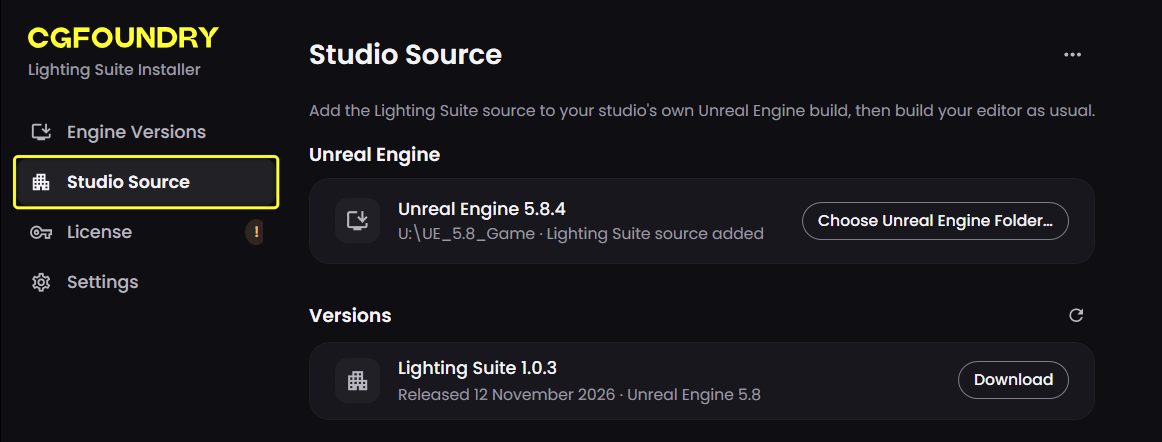
- Click Choose Unreal Engine Folder… and pick your engine's folder, the one that holds Engine. The Installer shows the engine version it read.

- Find the version you want and click Download. The Installer checks the download before you can use it.

- Click Add to Engine.
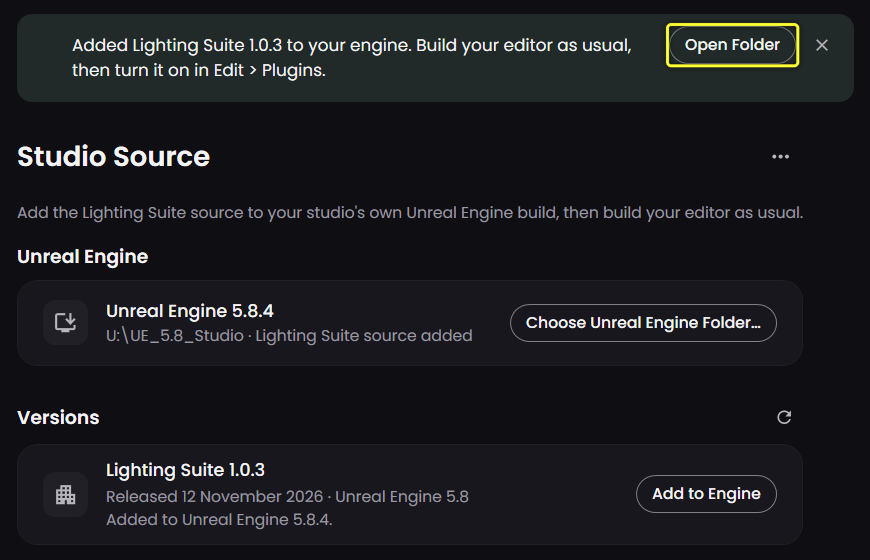
The Installer puts the source in <Engine>/Engine/Plugins/Marketplace/CGFLightingSuite. If an older version is there, it keeps it next to it as CGFLightingSuite.backup-<version>-<date>, turned off so Unreal doesn't load it. Delete the backup once your new build works.
The Installer stops, and changes nothing, when:
- Unreal Editor is open from that engine. Save your work, close it, then try again.
- You picked a Launcher engine. Launcher engines use Install on Engine Versions.
- The engine already has the Lighting Suite in another folder, for example
Engine/Plugins/Lighting. Two copies conflict. The message names the folder: remove that copy first. - The download doesn't match what we sent, or the zip isn't a Lighting Suite source download.
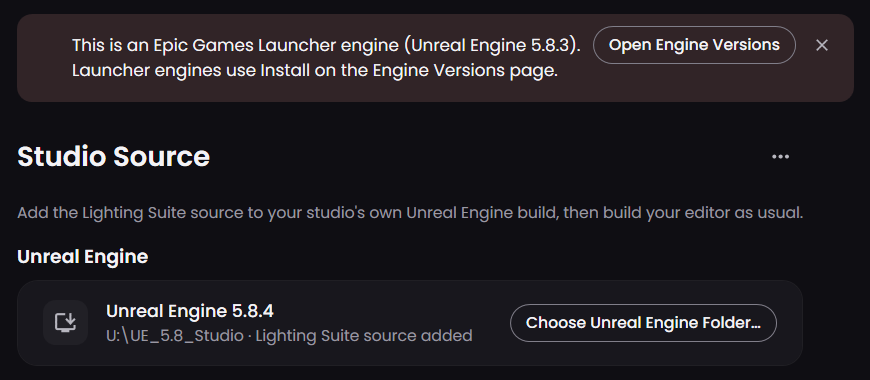
If anything fails while it adds the source, the Installer puts the previous folder back.
Build machines: the command line does the same, for an account that signed in once in the Installer window with the same Windows account:
CGFLightingSuiteInstaller.exe /S /accept-license=<date> /source-version=latest /engine-root=D:\Engines\Studio58 [/studio=ST-XXXXXXXX]
Use a version number instead of latest to add a set version. /studio is needed only when you belong to more than one studio with a Source License.
From the website
- In Studio → Source, find the version and click Download.
- Either add it with the Installer (Studio Source → More actions (…) → Add from File…), or unzip it yourself into one of these folders:
| Where | Path | When |
|---|---|---|
| Engine plugin | <Engine>/Engine/Plugins/Marketplace/CGFLightingSuite |
Every project on this engine can use it. Recommended |
| Project plugin | <Project>/Plugins/CGFLightingSuite |
Only this project uses it |
Use one place only: two copies of the plugin in the same engine and project conflict.
What's in the download
One folder, CGFLightingSuite, with:
- the C++ source of every module, the shaders, the plugin's content and configuration;
- SOURCE_LICENSE.txt, which names your studio and the version;
- Source/CGFLightingSuiteLicensing/CGFLightingSuiteSourceDrop.json, with the release date and your studio's drop id. Your build reads it to know which seats cover this version.
There are no binaries: your engine compiles everything. Keep both files that name your studio; the Source License terms ask you not to remove or change them. The Lighting Suite turns on Unreal's Data Validation plugin, which ships with the engine.
5. Build It
- Regenerate your project files.
- Build your editor, as you build your engine today.
The plugin also builds with unity builds and shared precompiled headers off (-StrictIncludes). Build machines that make the editor for your team need no seat.
Then turn it on in your projects:
- In the Unreal Editor, open Edit → Plugins.
- Search for CG Foundry Lighting Suite and tick it.
- Restart the editor.
6. Activate Your Team's Computers
A computer needs a seat only where someone uses the Lighting Suite tools. Your engine build can include the Lighting Suite on every computer: without a seat, the editor shows Lighting Suite content but can't change it.
First give seats out in Studio → Seats, to people or to workstations.
Artists:
- Install and open the Lighting Suite Installer.
- The Installer finds your engine and shows Built by your studio: the Lighting Suite is already in it, so there's nothing to install.
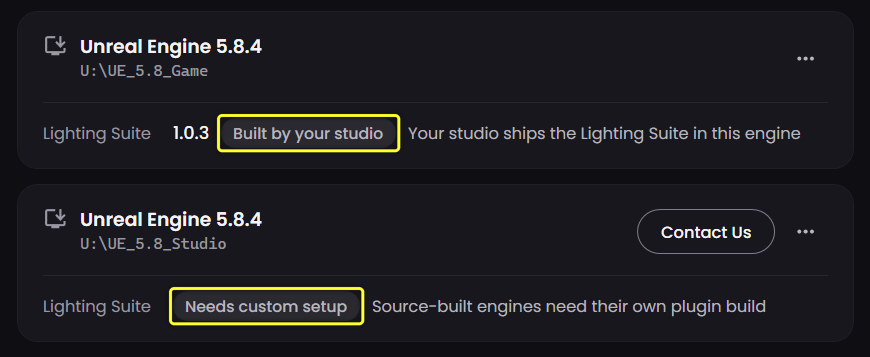
- Sign in, click Activate your license or studio seat and pick your studio's seat.
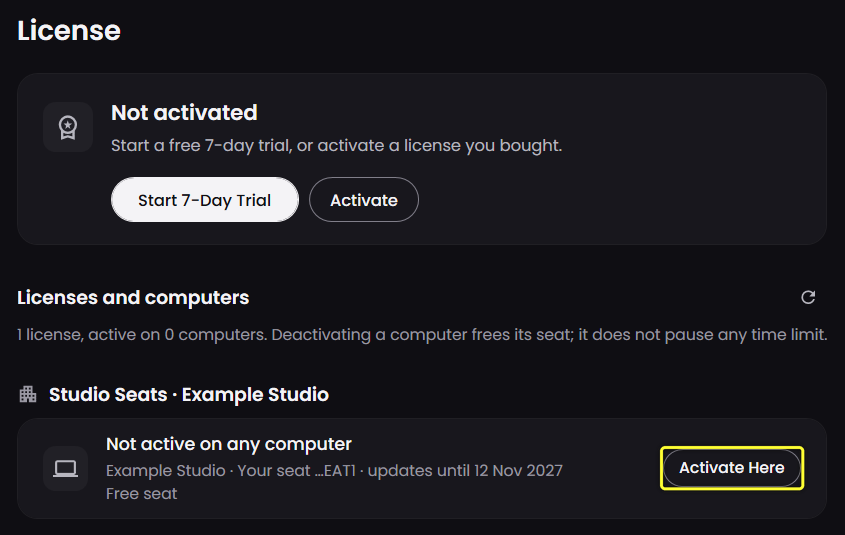
IT, without anyone signing in: make a deploy key in Studio → Deployment, then run:
CGFLightingSuiteInstaller.exe /S /license-only /accept-license=<date> /deploy-token=<key> /workstation=<name>
Add /policy to apply your studio's deployment settings. See Installing on Studio Computers for every option.
Computers without internet: request a license file in Studio → Offline Activation, then load it with the Installer.
Packaged games, applications and renders never need a seat or a license.
New Versions
New versions appear in Studio → Source, and in the Installer's Studio Source, on release day, while your Source License includes updates. Everyone in your studio who chose release news gets an email.
To update:
- Add the new version to your engine with Add to Engine, or replace the CGFLightingSuite folder by hand. Don't keep files from the old version.
- Build your editor again.
In your build, Update on the Lighting Suite's About tab opens your studio's Source page. To keep your team on one version, set the approved version in Studio → Deployment.
Renewal
Your Source License includes updates for 12 months. To keep the source and your 5 seats updating, renew the Source License from Studio → Overview each year; seats beyond 5 renew at the Studio seat price. If you don't renew, everything you have keeps working: the source versions you received and your seats. Only newer versions need a renewal.
Contact and Support
- Before you apply: use Contact Us on cgfoundryart.com and pick Source License, or email studios@cgfoundryart.com. Tell us your base engine version if it isn't 5.8.
- After you buy: use Studio → Support. Pick a topic (Seats and licensing, Install and deployment, Source and builds, Billing), and describe what happened. Your studio's Owners and Admins see the request and our replies.
- Moving your engine to a newer Unreal Engine version? Tell us in Studio → Support before you start, and we'll help you move the Lighting Suite with it.
- By email: studios@cgfoundryart.com.
Limitations
- Windows only. Mac and Linux editors aren't supported.
- Base version. Unreal Engine 5.8 only. For another base version, contact us before you apply.
- Changes to the renderer. If your engine changes Lumen, shadows or post processing, some Lighting Suite results can look different from ours. Tell us in Studio → Support, with your engine version and the rendering section of
DefaultEngine.ini, and we'll check it with you. - Each version needs a build. Your engine compiles the plugin, so every new Lighting Suite version needs a build of your editor on the computer that builds your engine. Artists' computers only need a seat.