
Lights
Softbox
A Softbox is an Emissive card that adds soft Indirect Lighting through Lumen, with no light actor. You can hide it from the camera and exclude it from reflections.
How It Works
The card glows like any Emissive material, and Lumen Global Illumination turns that glow into Indirect Lighting on nearby surfaces.
- It is not a light actor, so it adds nothing to the Light Complexity view and has no shadow map.
- The lighting is soft, with no sharp shadows.
- Intensity is the brightness of the card's surface. A bigger card at the same Intensity gives more light.
What It Fixes
| The problem | What to do |
|---|---|
| Shadows are too dark in a room or on a character. | Add a large Softbox as a soft fill. |
| A fill light adds an extra sharp shadow. | Use a Softbox. It has no sharp shadows. |
| Too many lights show in Light Complexity. | Replace fill lights with Softboxes. |
| A fill light shows up in a glossy floor. | Turn off Visible in Reflections. |
| You want a catchlight with no visible fixture. | Hide the card from the camera and keep Visible in Reflections on. |
| You need a glowing panel in the shot. | Turn on Visible in Camera. |
What's Included
- 4 presets: Rectangle Softbox, Round Softbox, LED Tube and Paper Lantern.
- 4 shapes: Rectangle, Disc, Sphere or your own Static Mesh.
- Light units: Intensity in nits or EV100, and Temperature in Kelvin.
- Visibility: separate settings for the camera and for reflections.
- Look at tracking: the card keeps facing an actor you pick.
- 20 Source Textures: strips, window grids, LED panels and more, in the plugin's Softbox/Masks folder.
- Sequencer: key Intensity, Light Color, Temperature, size and Edge Softness.
Placing a Softbox
In the Place Actors panel, click the L Suite category.
Drag Softbox into the viewport.
In the Details panel, in the Softbox section, click the Preset box (1) and choose a preset, such as Rectangle Softbox.
You should see: the surfaces near the card get brighter after Lumen updates.
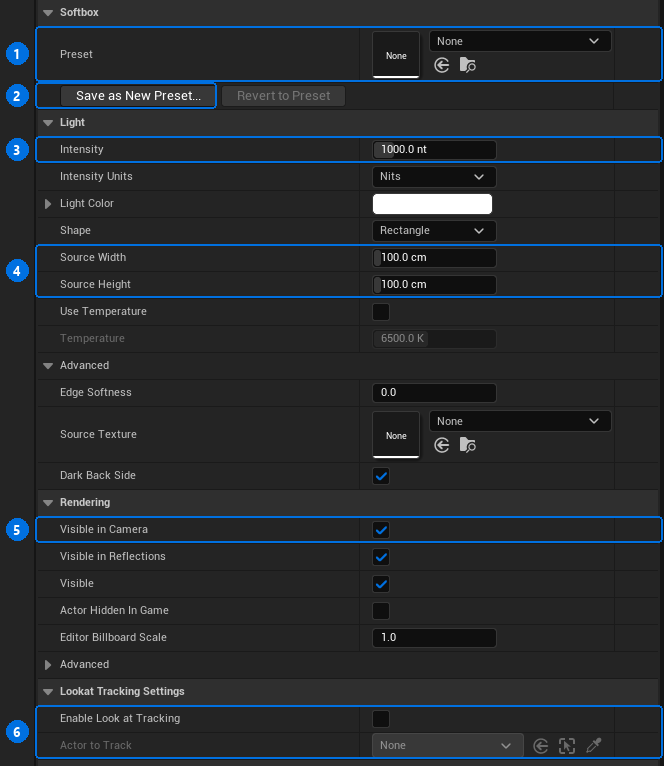
The Softbox in the Details panel. 1 Preset. 2 Save as New Preset... 3 Intensity, in nits. 4 Source Width and Source Height. 5 Visible in Camera. 6 Enable Look at Tracking and Actor to Track. In the Light section, set Source Width and Source Height (4). A bigger card gives softer, broader light.
Set Intensity (3).
The camera doesn't see the card by default, and it still lights the scene. To show it, turn on Visible in Camera (5).
To keep the card out of reflections, turn off Visible in Reflections. See Limitations.
To keep the card facing your subject, turn on Enable Look at Tracking and pick the Actor to Track (6).
To keep the look, click Save as New Preset... (2) under the Preset row.
Softbox Properties
| Section | Property | Description |
|---|---|---|
| Softbox | Preset | Shape, size, intensity, color, edge and Source Texture. Picking one copies its values. |
| Light | Intensity | Brightness of the card's surface. It stays the same when you resize the card. Default 1000 nits. |
| Light | Intensity Units | Nits or EV100. Changing it converts the value, so the brightness stays the same. |
| Light | Light Color | Color of the light. Default white. |
| Light | Shape | Rectangle (default), Disc, Sphere or Custom Mesh. |
| Light | Custom Mesh | The Static Mesh for the Custom Mesh shape. It fits Source Width and Source Height. Its front faces +X. |
| Light | Source Width, Source Height | Size of the card in cm. Default 100 x 100. For a sphere, Source Width is its diameter. |
| Light | Use Temperature, Temperature | Color temperature in Kelvin. 6500 K is white. Lower is warmer, higher is cooler. Off by default. |
| Light, Advanced | Edge Softness | Fades the light toward the card's edges. 0 (default) is a hard edge. Not on a sphere. |
| Light, Advanced | Source Texture | Shapes the glow across the card. Bright areas glow, dark areas don't, and colors tint the light. |
| Light, Advanced | Dark Back Side | On (default): only the front glows. Off: both sides glow. Not on a sphere. |
| Light | Visible in Camera | Off (default): the camera doesn't see the card, and it still lights the scene. On: the camera sees it. |
| Light | Visible in Reflections | On (default): the card shows in reflections, such as a catchlight in eyes. |
| Lookat Tracking Settings | Enable Look at Tracking, Actor to Track | The Softbox keeps facing the chosen actor, like a Cine Camera's look at tracking. |
Built-in Presets
| Preset | Use it for |
|---|---|
| Rectangle Softbox | A 60 x 90 cm daylight softbox (5600 K). The everyday key or fill. |
| Round Softbox | A 120 cm round daylight softbox (5600 K). Round catchlights. |
| LED Tube | A thin tube that glows on both sides (5 x 120 cm, 5600 K). Long highlights and in-shot practicals. |
| Paper Lantern | A 60 cm sphere with a household bulb (2700 K). Warm, soft light in every direction. |
You can also drag these from Presets > Softbox in the Lighting Suite Library. Drop one on empty space to place a new Softbox with it.
Additional Notes
Why does my Softbox show a message?
| Message | Meaning | Fix offered |
|---|---|---|
| Too small for Lumen | Lumen skips very small cards, so this one lights nothing. | Enlarge makes the card larger and lowers its intensity, so it gives the same light. |
| Lumen GI is off | The project's global illumination is not Lumen. | Open Project Settings |
| Software Lumen | Sharp reflections can still show a hidden card. | None |
Limitations
- It needs Lumen. Without Lumen Global Illumination, the Softbox gives no light. Set Dynamic Global Illumination Method to Lumen in Project Settings > Rendering. At Low Global Illumination scalability, Lumen's Indirect Lighting is off too.
- It is not a key light. It gives Indirect Lighting only, with no direct light and no sharp shadow. For a defined shadow, use a Rect Light or Spot Light.
- Excluding it from reflections needs Hardware Ray Tracing. With Software Ray Tracing, sharp reflections can still show the card.
- No reflection means no highlight. With Visible in Reflections off, the card leaves no highlight on glossy surfaces.
- Small, bright cards can look noisy. A larger, dimmer card gives the same light with less noise.
- Lumen takes a moment to update. The lighting can trail behind a card that moves quickly.
- Source Texture doesn't project a pattern. Lumen's light stays soft, and dark areas of the texture lower the total light. To project a pattern, use a gobo.
- No grid, barn doors or flicker. You can animate its settings in Sequencer.