
Lights
Lights
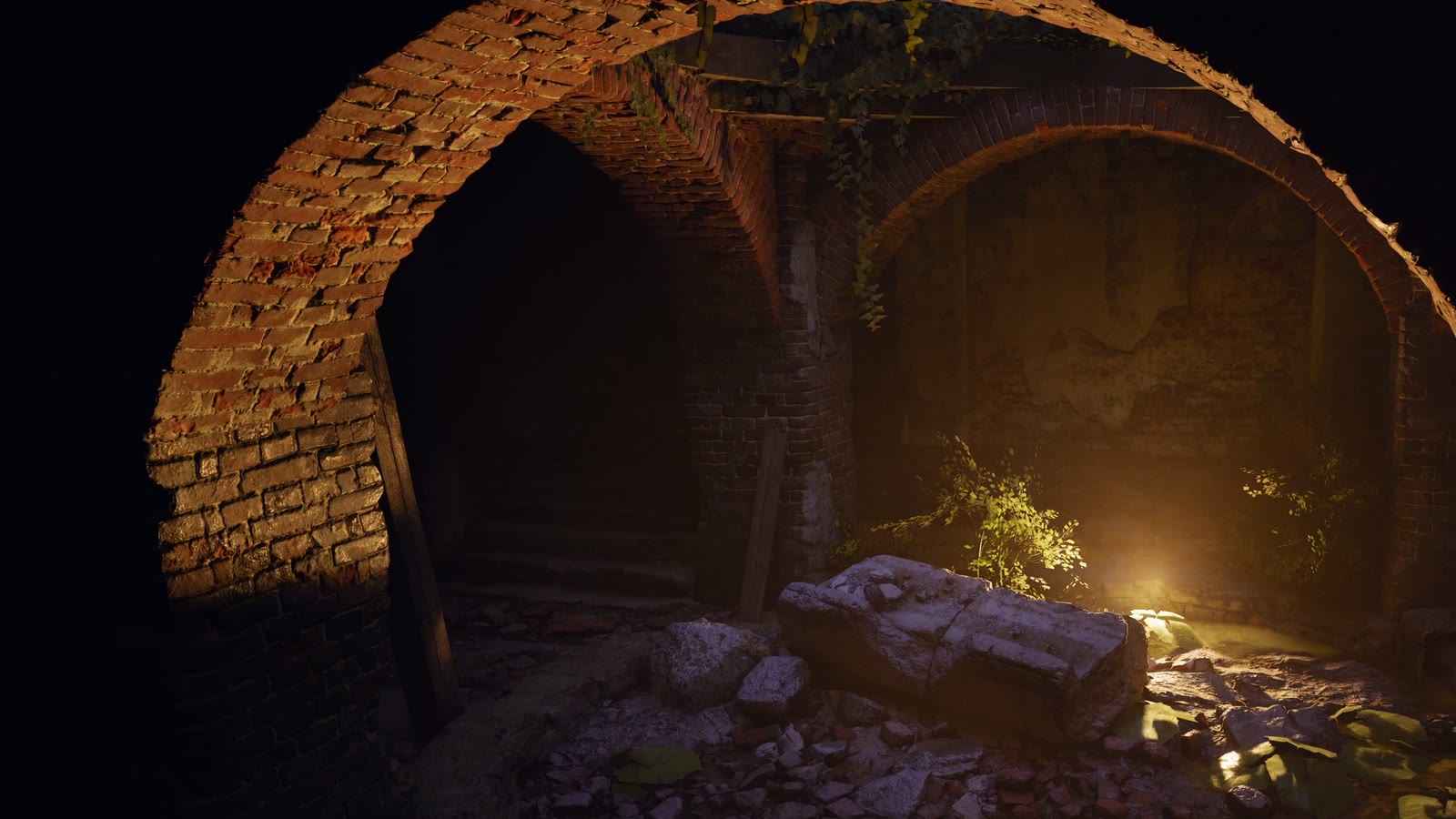
The Lighting Suite works on the lights you already use. Unreal's Point, Spot, Rect and Directional Lights get a Lighting Suite category in the Details panel. There is nothing to swap or convert.
For soft indirect light without adding a light, see the Softbox.
How It Works
The settings are stored inside the light, as Asset User Data on its light component. The light stays Unreal's own class.
- Specular Boost: Unreal's Specular Scale stops at 1. Specular Boost goes higher and raises the highlights only.
- Shadow rows: per-light Virtual Shadow Map settings that Unreal's Details panel doesn't show.
- Gobo and Shadow Paint: both use the light's Light Function, with the material already built.
- Excluded Actors: you list the actors, and the Lighting Suite manages Lighting Channels 1 and 2 for you.
What It Fixes
| The problem | What to do |
|---|---|
| A highlight is too dim, and the diffuse light is right. | Raise Specular Boost. |
| One light's shadow looks soft or blocky. | Raise Virtual Shadow Map Resolution Scale. |
| A shadow edge shows stair-steps. | Raise Shadow Edge Smoothing. |
| The lighting looks flat. | Add a gobo. |
| A light reaches a place you want dark. | Paint it out with Shadow Paint. |
| A lamp shade blocks the light inside it. | Add the shade to Excluded Actors. |
| A Rect Light's highlight is a plain rectangle. | Apply a Light Source Texture from the Library. |
| You want a real light color quickly. | Apply a Color Temperature from the Library. |
What's Included
- All four light types: Point, Spot, Rect and Directional Lights.
- Six settings: Specular Boost, Virtual Shadow Map Resolution Scale, Shadow Edge Smoothing, Gobo, Shadow Paint and Excluded Actors.
- Gobos: 33 patterns and 31 presets.
- 20 Light Source Textures for Rect Lights, such as a window, a strip or an LED panel.
- 8 Color Temperatures, from Candle (1900 K) to Blue Sky (10000 K).
The Lighting Suite Category on Unreal's Lights
Select a Point, Spot, Rect or Directional Light.
In the Details panel, find the Lighting Suite category, right after Light.
You should see: Specular Boost (1), Virtual Shadow Map Resolution Scale (2), Shadow Edge Smoothing (3), the Gobo group (4), Shadow Paint (5) and Excluded Actors (6).
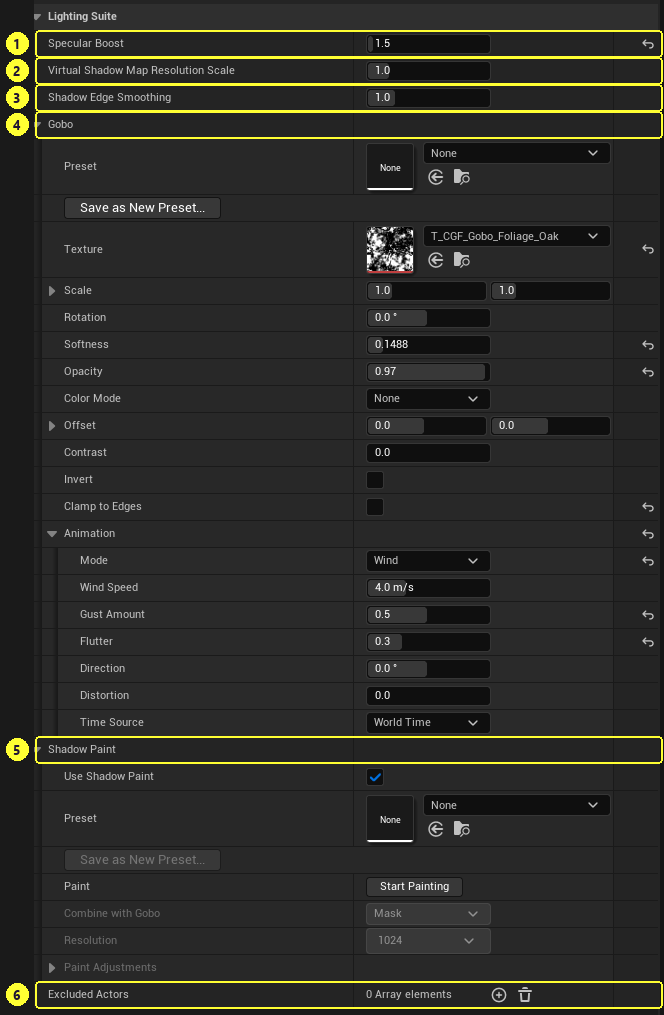
The Lighting Suite category of an Unreal Spot Light, right after Light. 1 Specular Boost. 2 Virtual Shadow Map Resolution Scale. 3 Shadow Edge Smoothing. 4 Gobo. 5 Shadow Paint. 6 Excluded Actors. Change a value and watch the viewport.
These are ordinary Details rows, with undo and reset arrows. At its default values, the light renders like a plain Unreal light.
| Property | Lights | Description |
|---|---|---|
| Specular Boost | Point, Spot, Rect | Brightens highlights past Specular Scale. Diffuse light, Lumen bounce and fog stay the same. Default 1, up to 16. |
| Virtual Shadow Map Resolution Scale | All four | Sharpness of this light's shadows. 2 is twice as sharp, 0.5 is half. Default 1, from 0.25 to 4. Above 2 it uses much more shadow memory. |
| Shadow Edge Smoothing | All four | Smooths stair-steps on shadow edges. Default 1, from 0 to 4. High values can leak light near the objects that cast the shadow. |
| Gobo | All four | Projects a pattern through the light. See Gobos. |
| Shadow Paint | Spot, Directional | Paint where the light reaches. See Shadow Painter. |
| Excluded Actors | All four | Actors that neither block nor receive this light, such as a lamp shade. |
A dim Spot Light on a bar shelf. Only Specular Boost changes: the sheen on the boards brightens, and the color of the wood stays the same.
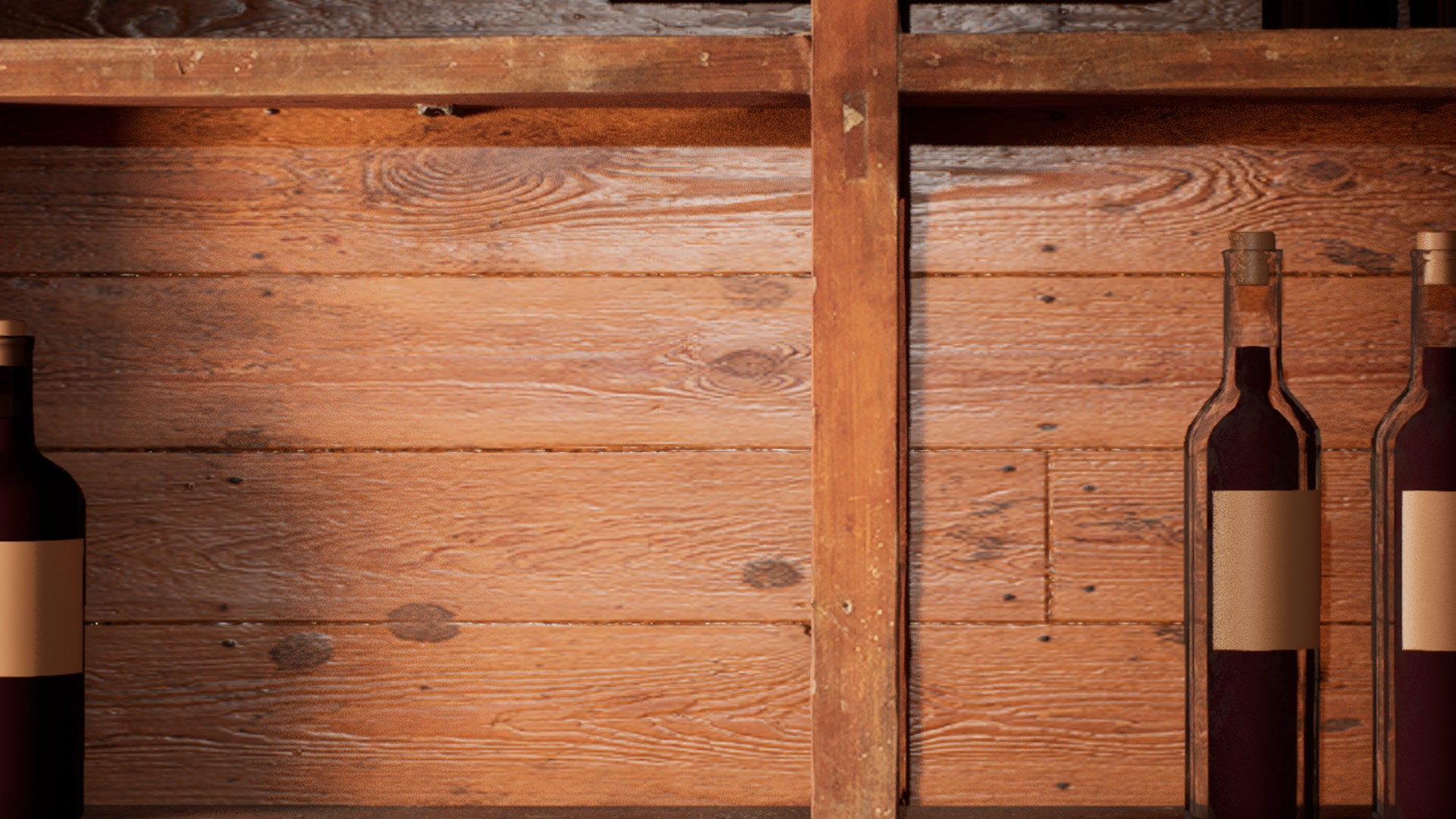
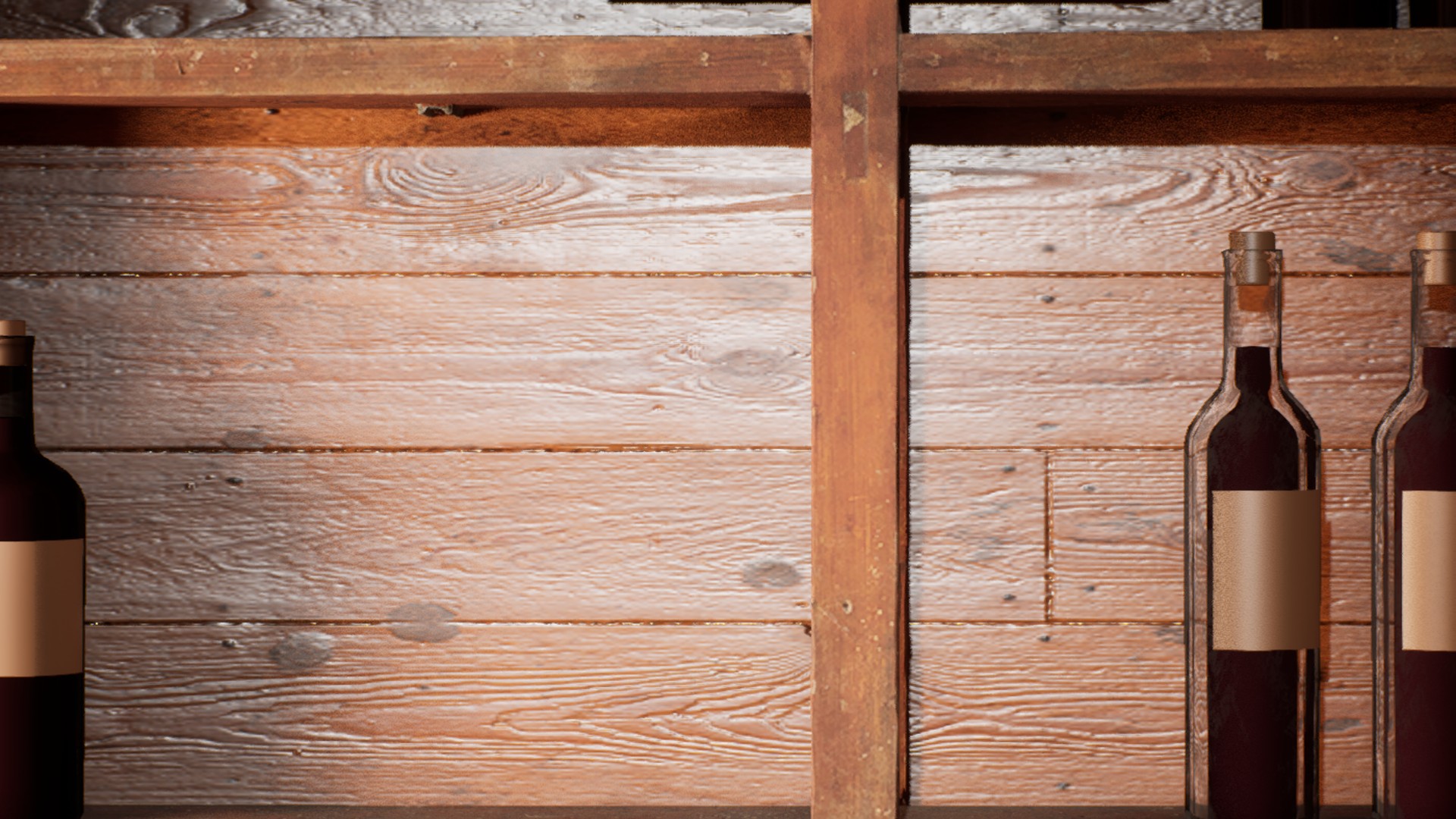 Specular Boost 1Specular Boost 4
Specular Boost: 1 (Unreal's default). Specular Boost: 4. A brighter sheen on the boards; the diffuse light is unchanged.
Library Content for Lights
Drag an item from the Lighting Suite Library onto a light, or right-click it and select Apply to Selected.
- Textures > Light Source Textures (Rect Lights): sets the Source Texture. Intensity is adjusted so the light stays as bright.
- Values > Color Temperatures (any light or Softbox): turns on Use Temperature and sets Temperature.
Limitations
- No Specular Boost on Directional Lights. Their light also colors the sky, so a boost would brighten it. For a stronger highlight in a sunlit shot, add a Spot or Rect Light.
- Shadow Paint needs a Spot or Directional Light. On a Point or Rect Light, use a gobo.
- The two shadow rows need Virtual Shadow Maps. They do nothing with other shadow methods. Check Shadow Map Method in Project Settings.
- Up to two lights per level can exclude actors. They use Lighting Channels 1 and 2. If neither is free, the exclusion has no effect and a message says so. Clear another exclusion.
- Excluded actors must match. If their components use different Lighting Channels, the exclusion has no effect and a message says so. Match their channels.
- One light per excluded actor. A message names any actor listed on two lights. Remove it from one.
- Excluded Actors covers direct light. Lumen can still light the actor with bounce light. If that shows, lower the light's Indirect Lighting Intensity.
- Specular Boost and the two shadow rows can't be keyed in Sequencer. Key Unreal's own rows, such as Intensity, instead.
- The Light Function Material row is read only while a gobo or Shadow Paint is on. The light's own material comes back when you turn both off.
- The settings need the plugin. Without it, the light loads as a plain Unreal light and these settings are lost. Keep the plugin enabled.