
Debugging Tools
PBR Validation
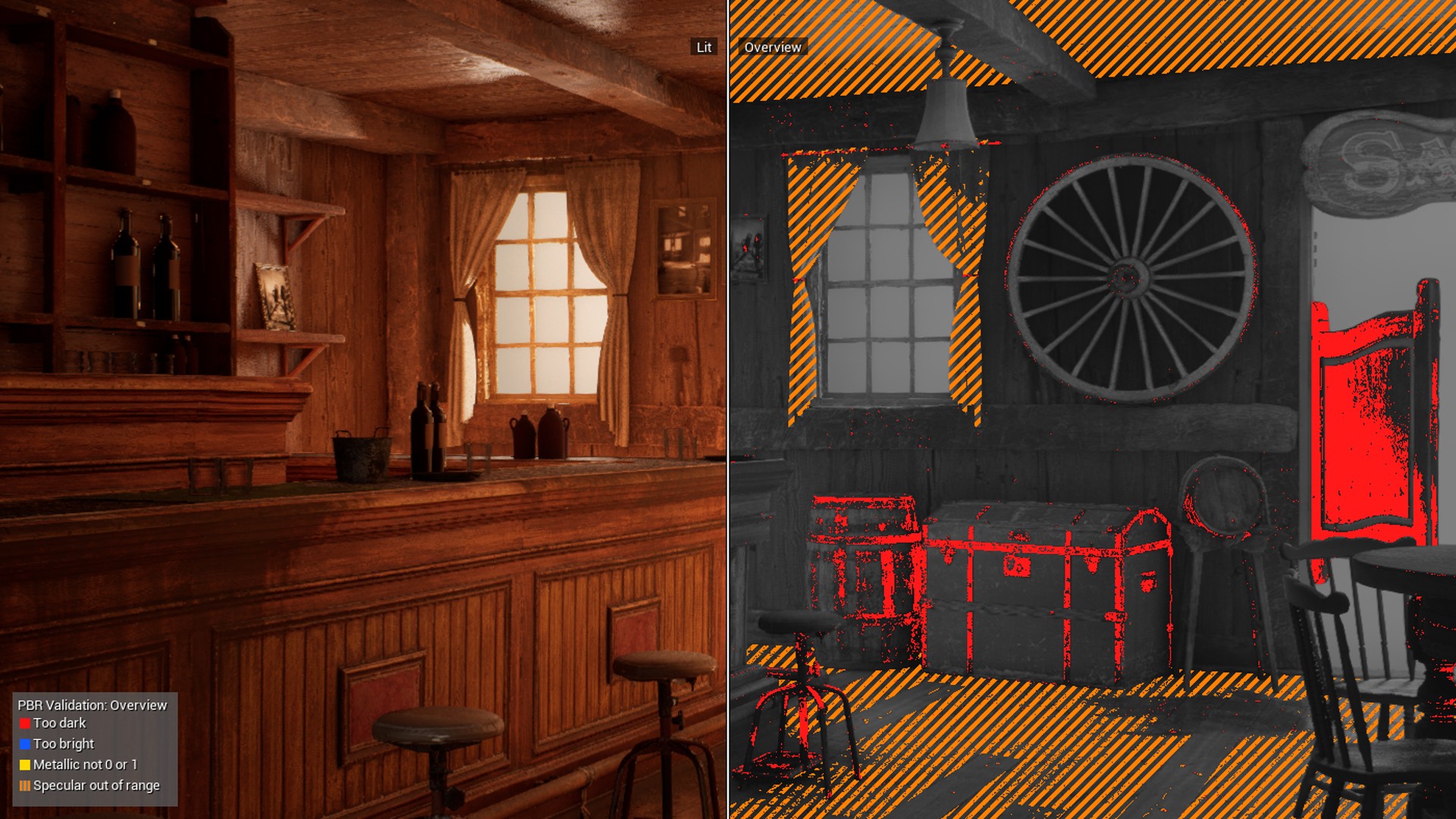
PBR Validation checks your level's materials and textures against real-world values. Light bounces off your materials, so it shows which values keep the lighting from looking right, and it fixes the settings it can.
How It Works
PBR Validation has two parts.
- The check runs on assets. It measures each material's Base Color texture and reads its Base Color, Metallic, Roughness and Specular parameters. It compares them with general limits and with the range of the material's Material Type. It also checks each texture's sRGB and compression settings. Results go to a table in the PBR Validation tab.
- The views run per pixel. A post process material reads the GBuffer in the level viewport and colors each value that is out of range.
Unreal's Buffer Visualization views show Base Color, Metallic, Roughness and Specular as plain values, and you judge them by eye. The PBR Validation views add colors for values out of range, plus a legend. The check adds real-world ranges for each Material Type and fixes.
The non-metal ranges are based on published measurements, widened for natural variation. The metal values are based on the table in Unreal's documentation.
What It Fixes
| The problem | What to do |
|---|---|
| The lighting looks wrong, and you don't know if the materials are the cause. | Click Check Level, then look at the Overview view. |
| A Base Color is darker than charcoal or brighter than fresh snow. | Find it in the Base Color view, then change its texture or parameter. |
| A texture has the wrong sRGB or normal map compression setting. | Use Fix on its row, or Fix All (n)... for all of them. |
| Metallic sits between metal and non-metal. | Check the Metallic view, then use Fix on its row. |
| A non-metal's Specular is out of range. | Use Fix to set it to 0.5. |
| You want to compare a surface with its real material. | Set its Material Type with Review (n), then use Material Check. |
| A value is out of range on purpose. | Use Accept As Is. |
| You want results while you work. | Save the material. Unreal's Data Validation runs the same rules on save and lists them in the Message Log. |
What's Included
- 7 views: Overview, Material Check, Base Color, Metallic, Roughness, Specular and Reflectance (F0), with Heatmap and Split with Lit.
- 45 built-in Material Types: 33 non-metals and 12 metals. Project Material Types adds your own.
- 5 kinds of fix: sRGB on, sRGB off, normal map compression, Specular and Metallic. Fix All (n)... lists the changes first, and they are one undo step.
- Review: step through the materials waiting for a decision, each framed in the viewport.
- Data Validation: on save, and with Validate Assets in the Content Browser. Results are warnings and never mark an asset invalid.
Checking a Level
On the level toolbar, click Lighting Suite and select PBR Validation. It is in the Debugging section.
On the toolbar at the top, click Check Level.
You should see: a notification with the number of materials, errors and warnings, and a table with one row per material.
Read a row. Result is Error, Warning, Unknown or Pass, and Issue names the main problem. A Warning can also mean the Material Type is a guess you haven't confirmed.
Right-click the material in the row:
- Fix applies that one fix.
- Confirm Type or Set Material Type sets its Material Type.
- Accept As Is stops flagging values you intended. Wrong texture settings stay flagged.
- Select Meshes, Show in Viewport and Browse to Asset find it.
The list above the table shows Needs Attention or All. Export writes the table to a CSV file.
To check only some materials, select actors in the level, or materials or meshes in the Content Browser, then click Check Selected.
Fixing All Issues at Once
After a check, click Fix All (n)... on the toolbar. The number is how many issues it can fix.
In the Fix All PBR Issues window, untick anything you want to keep as it is.
Click Apply.
You should see: the changes happen in one step. One Ctrl + Z undoes them all.
Save the changed assets to keep the fixes. Run Check Level again to see the result.
What the fixes do:
- A texture fix changes its sRGB or compression setting, and updates the material so it still compiles.
- A Specular fix sets Specular to 0.5 on the material instance.
- A Metallic fix rounds Metallic to 0 or 1 on the material instance. Check the material first: it may use a mask on purpose.
Setting the Material Type
The check works best when each material knows what real material it stands for, such as concrete, gold or bark. PBR Validation guesses a type from clues such as names, the physical material and values. It marks the type as a guess and says why.
On the toolbar, click Review (n). The number is how many materials are waiting.
You should see: the first material to review, framed in the viewport.
Press Enter to Confirm the guess, A to Accept As Is, or S to Skip.
Press Escape when you are done.
You can also right-click an actor and open PBR Validation > Materials. Save the material to keep its type. The type is editor-only data and is not cooked into your game.
Seeing Problems in the Viewport
In any level viewport, open View Modes > PBR Validation.
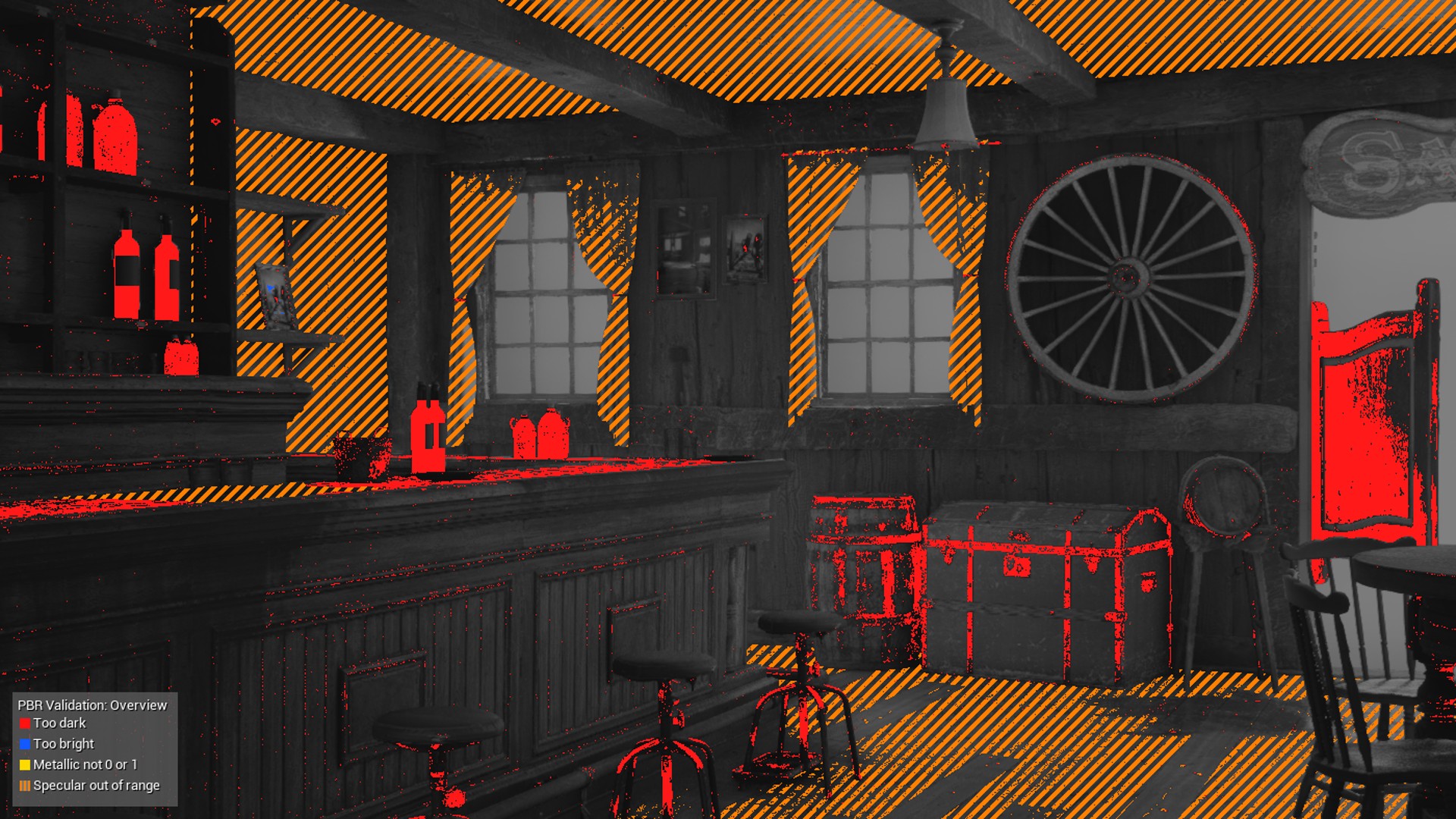
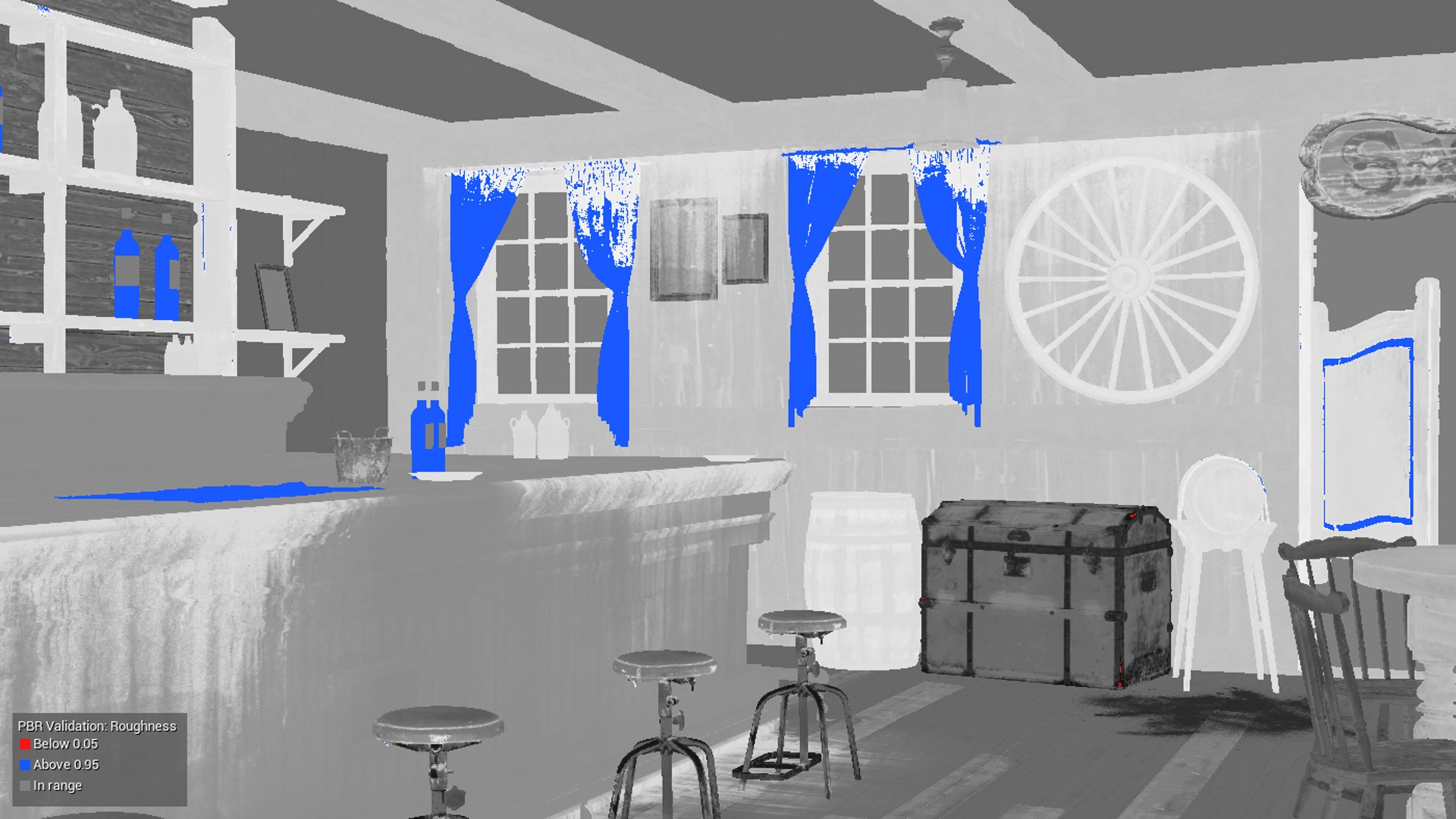 OverviewRoughness
Overview. The legend at the bottom left names each color. Roughness: gray is the value. The blue curtains are above 0.95, the top of the project's range.
| View | What you see |
|---|---|
| Overview | Values no real material has. Red is too dark, blue too bright, yellow neither metal nor non-metal, orange stripes a Specular out of range. |
| Material Check | Every pixel compared with one Material Type. Green matches, red is too dark, blue too bright, yellow neither metal nor non-metal, magenta the wrong Metallic for the type, orange stripes a Roughness outside its range. |
| Base Color | Base Color with the range colors: red too dark, blue too bright, yellow neither metal nor non-metal. |
| Metallic | Metallic as gray; yellow is neither metal nor non-metal. Shown as Metalness (F0) with Substrate. |
| Roughness | Roughness as gray; red below and blue above the project's roughness range. |
| Specular | Specular as gray; non-metals outside the range in red (low) or blue (high). |
| Reflectance (F0) | The reflectance the lighting uses. No range check. |
Heatmap shows Metallic, Roughness or Specular as a color ramp instead of gray. Split with Lit shows the lit image on the left and the PBR view on the right. Show Values Under Cursor prints the material and its values. Lit turns the PBR view off.
| Command | Default key |
|---|---|
| Toggle PBR Validation | Alt + Shift + V |
| Next PBR Validation View | Alt + Shift + Period |
| Previous PBR Validation View | Alt + Shift + Comma |
| Split with Lit | Alt + Shift + Slash |
Project Settings
The values PBR Validation checks against are in Project Settings > Plugins > CG Foundry Lighting Suite - PBR Validation. The Thresholds button on the toolbar opens the general limits. Values are linear.
| Setting | Default | Description |
|---|---|---|
| Dielectric Min Luminance | 0.02 | Darkest believable non-metal (charcoal, fresh asphalt). |
| Dielectric Max Luminance | 0.9 | Brightest believable non-metal (fresh snow). |
| Metal Min Luminance | 0.45 | Darkest believable metal. |
| Metallic Tolerance | 0.1 | Metallic values further than this from 0 or 1 are flagged. |
| Check Specular | On | Flags non-metals whose Specular is outside Specular Min to Specular Max. |
| Specular Min, Specular Max | 0.25, 0.75 | The believable Specular range. |
| Check Roughness | On | In the Roughness view, flags surfaces outside Roughness Min to Roughness Max. The check on assets uses the Material Type's range instead. |
| Roughness Min, Roughness Max | 0.05, 0.95 | The believable Roughness range. |
| Use Built-In Material Types | On | Uses the built-in Material Types. |
| Project Material Types | Empty | Your project's own Material Types. One with the same Id as a built-in type replaces it. |
| Suggest Material Types | On | Lists Material Types and results in the actor right-click menu, and lets Material Check follow the selected surface. |
| Analysis Resolution | 256 | The size textures are downsampled to before they are measured. |
| Outlier Percent | 2 | Percent of darkest and brightest texels ignored when a texture is measured. |
| Report in Data Validation for Submits and Commandlets | Off | Also runs the rules when Data Validation checks a submit or runs on a build machine. |
Additional Notes
Does it work with Substrate?
Yes. With Substrate, PBR Validation judges metalness from the stored reflectance.
Limitations
- Only your project's content is checked. Engine content, engine plugins and Lighting Suite's own content are skipped. To check an asset, move it into your project.
- It cannot tell what a material is. It suggests a type and says why. Values alone cannot tell apart materials whose ranges overlap, such as light wood, cardboard and sand. Set the Material Type yourself when it matters.
- The check reads textures and parameters, not the material graph. A constant or a math node in the graph isn't read. For the final values, use the views.
- One Base Color texture is measured for each material. With several, the check uses the one whose name is closest to the material's name. Name that texture to match.
- A texture's use is a guess. It comes from the texture's name and settings, so a result can be wrong. Untick that fix in Fix All PBR Issues.
- Some results have no Fix. Base Color values, Roughness values and a data compression setting on a Base Color texture. Change them in the texture or the material.
- Specular and Metallic fixes need a material instance. A parent material isn't changed. Change it in the Material Editor.
- Check Level sees loaded actors only. In a large level, load the area first.
- The first check can take a while. It reads the source of each Base Color texture. You can cancel it. Measurements are kept until the texture changes or you close the editor.
- The views show in editor viewports only. They don't show in Play In Editor, Simulate, Movie Render Queue or packaged games.
- The views read the GBuffer. Unlit surfaces, the sky, Hair, Eye and Single Layer Water aren't judged. Translucent surfaces don't draw into the GBuffer, so the views show what is behind them. Use the check for those.
- Decals get a shorter check. Only their settings are checked. Set a Material Type to check their values too.